

Are you frustrated by slow internet or dead zones in your home? The secret to a strong, reliable WiFi signal isn’t just in your router—it’s where you place it.
You might be losing speed and coverage without even realizing it. You’ll discover simple, practical tips on where to put your WiFi router to get the best signal in every corner of your home. Keep reading to unlock faster browsing, smoother streaming, and a hassle-free online experience.
Credit: tcaflisch.medium.com
Ideal Router Placement
Finding the ideal place for your WiFi router can greatly improve your internet speed and coverage. Proper placement ensures a strong signal reaches every corner of your home or office. Small changes in location can make a big difference in performance.
Central Location Benefits
Placing the router in the center of your space helps the signal spread evenly. This reduces dead zones and weak spots. A central spot means devices at the edges get better connection quality. Avoid placing the router near windows or outside walls to keep the signal inside.
Avoiding Obstacles
Walls, furniture, and large metal objects block WiFi signals. Keep the router away from thick walls and appliances like refrigerators or microwaves. Avoid placing the router near mirrors or aquariums, which can reflect or absorb signals. Clear space around the router lets the signal travel freely.
Elevated Positions
Placing the router high up improves signal reach. Shelves or wall mounts work well. Avoid placing the router on the floor or behind large objects. Elevation helps the signal avoid obstacles and reach devices better. A higher position often means fewer interruptions.
Credit: tcaflisch.medium.com
Minimizing Interference
Interference can seriously weaken your WiFi signal and slow down your internet speed. Minimizing interference is key to placing your router where it can perform its best. Understanding what causes interference helps you avoid common pitfalls and improve your connection quality.
Common Household Interferences
Many everyday items can interfere with your WiFi signal without you realizing it. Microwaves, cordless phones, and even baby monitors operate on similar frequencies as WiFi and can cause signal drops.
Thick walls, metal objects, and mirrors also block or reflect signals, creating dead zones in your home. Identifying these obstacles helps you choose a better spot for your router.
Distance From Electronics
Placing your router too close to other electronic devices can cause interference. Devices like TVs, Bluetooth gadgets, and even fluorescent lights emit electromagnetic signals that disrupt your WiFi.
Try to keep your router at least a few feet away from these electronics. This simple step often leads to a noticeable boost in speed and stability.
Choosing The Right Channel
WiFi routers broadcast on different channels, but many nearby networks might be on the same one, causing interference. Using a less crowded channel reduces signal overlap and improves performance.
You can scan your area with free apps to find which channels are busiest. Switching your router to a clearer channel can make a big difference in your network’s reliability.
Optimizing For Coverage
Optimizing WiFi coverage in your home ensures a strong and steady internet signal. The right router placement can reduce dead zones and improve speeds. Different home layouts need different approaches to get the best coverage.
Multi-story Homes
Placing the router on the middle floor helps spread the signal evenly. Keep it away from thick walls and metal objects. Place the router in an open area, such as a hallway or living room. Avoid basements or corners where the signal may weaken.
Using Range Extenders
Range extenders boost WiFi signals to reach far areas. Place extenders halfway between the router and weak signal zones. Avoid placing extenders too far from the router, or they won’t work well. Extenders help cover large homes without extra wiring.
Mesh Network Solutions
Mesh networks use several devices to cover the whole house. Each device connects to others, creating a strong network. Place mesh nodes in different rooms for even coverage. Mesh systems work well in complex layouts and multi-story homes.
Router Settings For Speed
Optimizing your router settings can significantly boost your WiFi speed and reliability. Even if your router is placed in the perfect spot, poor settings can hold back your internet performance. Let’s look at some key adjustments you can make to get the most from your connection.
Selecting Frequency Bands
Most modern routers offer both 2.4 GHz and 5 GHz frequency bands. The 2.4 GHz band covers a wider area but is slower and more crowded, while the 5 GHz band is faster but has a shorter range.
Try connecting devices that need high speed, like gaming consoles or streaming boxes, to the 5 GHz band. Leave devices that only need basic internet, such as smart home gadgets, on the 2.4 GHz band to reduce congestion.
Have you noticed your video calls drop or buffer on certain devices? Switching to the right band can often fix this without needing to buy new hardware.
Firmware Updates
Router manufacturers frequently release firmware updates that improve speed, security, and stability. These updates can fix bugs and add new features that make your network faster.
Check your router’s admin page regularly or set it to update automatically if available. I once ignored updates for months and experienced slowdowns that disappeared immediately after updating the firmware.
Updating firmware is a simple step that many overlook but can make a big difference in your WiFi experience.
Quality Of Service Settings
Quality of Service (QoS) settings allow you to prioritize certain types of traffic or devices on your network. This can be especially useful if multiple users are streaming, gaming, or working online at the same time.
- Prioritize video calls and streaming apps to reduce lag.
- Give priority to work devices during business hours.
- Limit bandwidth for less important tasks like downloads or updates.
Have you ever wondered why your connection slows down when someone else in your house starts streaming? Setting up QoS ensures your critical tasks don’t suffer when the network gets busy.
Testing And Adjusting Placement
Placing your WiFi router perfectly can feel like an art form. Once you’ve found a spot that seems ideal, it’s crucial to test and adjust the placement to ensure optimal connectivity. This involves using various tools and techniques to check signal strength and speed, allowing you to tweak the location for the best performance. Let’s dive into some effective methods to fine-tune your router’s position.
Using Speed Test Tools
Speed test tools are your first line of defense in checking WiFi performance. These tools, like Ookla’s Speedtest or Google’s Internet Speed Test, give you a quick snapshot of your network’s download and upload speeds.
- Run a speed test at different times of the day to understand peak performance.
- Compare speeds in various rooms to identify dead zones.
- Adjust the router’s position and test again to see if speeds improve.
Don’t forget to test with multiple devices to get a comprehensive view. Does your laptop in the living room get the same speed as your smartphone in the kitchen?
Signal Strength Apps
Signal strength apps are another useful tool for optimizing your router placement. Apps like WiFi Analyzer (Android) or WiFi Explorer (Mac) can help you visualize signal strength throughout your home.
- Identify areas with weak signal and strong interference.
- Experiment by moving the router away from walls or large objects that might block signals.
- Use the app to find the best channel to reduce congestion.
Consider the layout of your home. Could the signal strength improve if the router is on a higher shelf or more centrally located?
Fine-tuning Location
Fine-tuning your router’s location might involve some trial and error, but it’s worth the effort. Start by moving the router a few inches in different directions and observe the changes.
- Elevate the router to avoid interference from furniture.
- Avoid proximity to appliances like microwaves that can disrupt signals.
- Check the router’s orientation; sometimes a slight angle adjustment can make a difference.
Think about the spaces where you spend most of your time. Is there a particular spot where your streaming devices consistently buffer?
Ultimately, finding the perfect spot for your WiFi router is about balancing convenience with performance. Testing and adjusting placement ensures you get the most out of your internet connection. With a little patience and experimentation, you can enjoy seamless connectivity throughout your home.
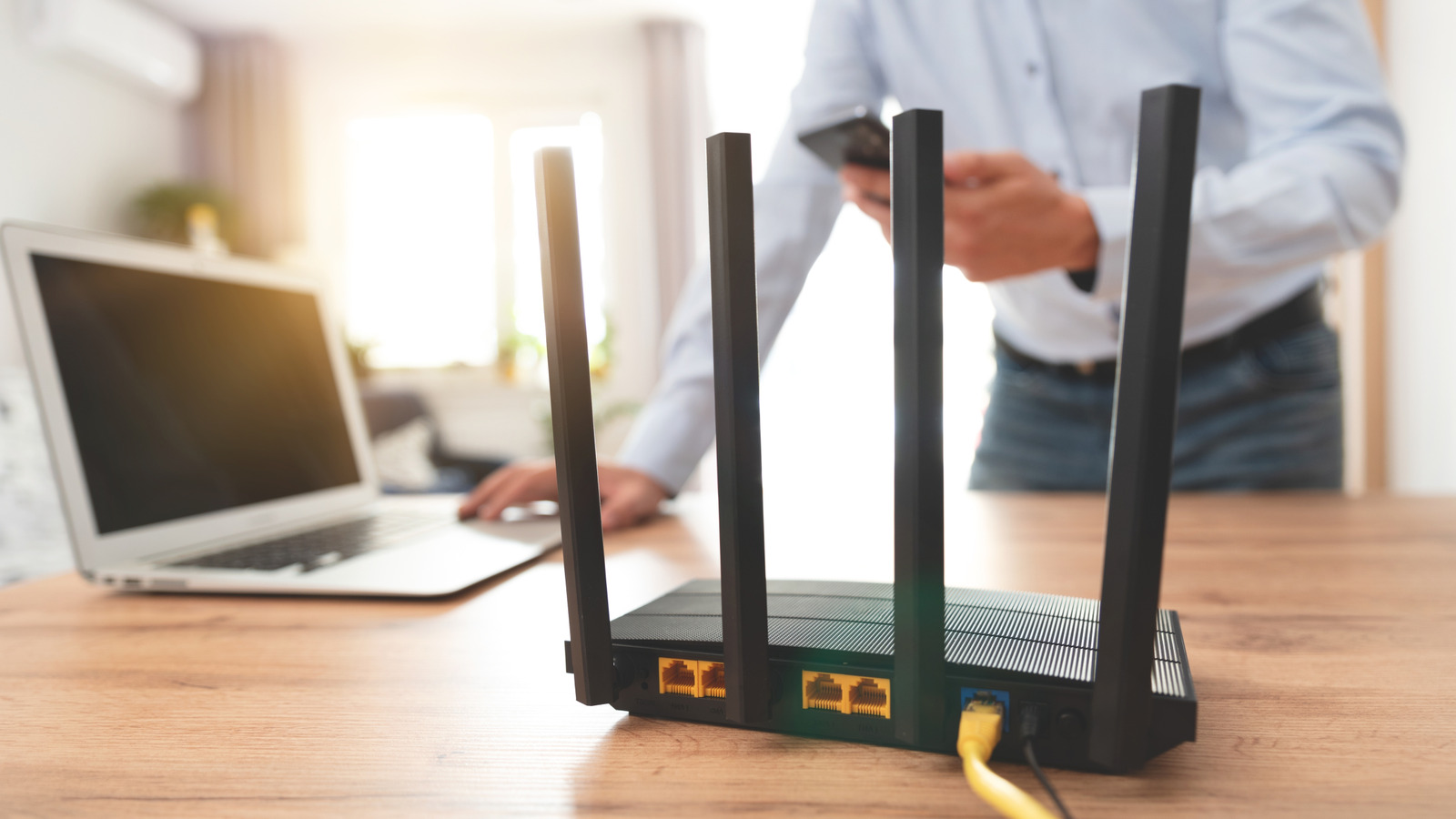
Credit: www.slashgear.com
Frequently Asked Questions
Where Is The Best Place To Put A Wifi Router?
Place your WiFi router centrally in your home for even coverage. Avoid corners or closed spaces that block signals. Elevate the router on a shelf or table for better reach. Keep it away from thick walls and electronic devices that cause interference.
Should A Wifi Router Be Placed Near A Window?
No, placing a WiFi router near a window is not ideal. Signals may escape outside, reducing indoor coverage. Instead, position the router centrally and away from windows for stronger, more consistent WiFi throughout your home.
How High Should I Place My Wifi Router?
Place your WiFi router at a height of 5 to 7 feet. Elevated placement reduces obstacles and improves signal range. Avoid placing it on the floor or inside cabinets to maximize coverage and signal strength throughout your home.
Can A Wifi Router Be Placed In The Kitchen?
Avoid placing your WiFi router in the kitchen due to interference. Appliances like microwaves and refrigerators disrupt WiFi signals. Choose a central, open space in your home to ensure consistent and reliable WiFi performance.
Conclusion
Placing your WiFi router in the right spot makes a big difference. Choose a central, open area away from walls and metal objects. Avoid corners and floors to get the best signal. Keep the router high up to help signals travel far.
Small changes can improve your internet speed and coverage a lot. Try these tips to enjoy faster, stronger WiFi at home. Good placement saves frustration and keeps all devices connected well. Simple steps, better internet.