

Are you tired of weak WiFi signals that slow down your internet? What if you could boost your WiFi without buying expensive equipment?
Using a router as a WiFi booster is a smart and affordable way to extend your wireless range. In this guide, you’ll discover simple steps to turn your extra router into a powerful WiFi extender. Imagine streaming your favorite shows or working from any corner of your home without interruptions.
Keep reading, and you’ll learn how to make your WiFi stronger and more reliable today.
Credit: www.signalbooster.com
Why Use A Router As A Wifi Booster
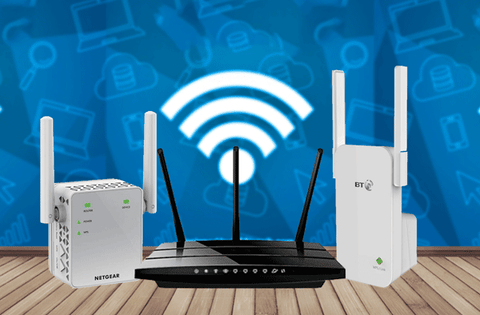
Using a router as a WiFi booster can improve your internet coverage at home. It helps spread the WiFi signal to areas with weak or no connection. This method is cost-effective and uses equipment you may already have. It creates a stronger, more reliable network for all your devices.
Benefits Of Extending Wifi Range
- Better internet signal in every room
- Fewer dead zones and weak spots
- Improved connection for smart devices and gadgets
- More stable video calls and streaming
- Supports multiple users without lag
- Cost-saving compared to buying new boosters
When To Consider A Router Booster
Choose a router booster if your WiFi signal does not reach some rooms. It helps when walls or floors block the signal. Large homes or offices benefit from a stronger WiFi network. Use a router booster if many devices slow down your internet. It also helps in outdoor spaces like gardens or patios.
Credit: www.signalbooster.com
Choosing The Right Router
Choosing the right router is key to boosting your WiFi signal effectively. The router must work well with your current network. It should also have features that support strong and stable connections. These factors help extend your WiFi range without problems.
Compatibility With Existing Network
Ensure the router matches your internet service and current devices. Check the router’s wireless standard, like 802.11ac or 802.11n. The new router should support the same or higher standard than your main router.
Also, verify the router’s frequency bands. Dual-band routers use 2.4 GHz and 5 GHz bands for better coverage. The router must connect smoothly with your main network’s settings and passwords.
Key Features To Look For
- Strong signal range to cover larger areas.
- Easy setup options for quick installation.
- Support for Ethernet ports to connect wired devices.
- Guest network feature to keep your main network secure.
- Firmware updates to fix bugs and improve performance.
- Compatibility with mesh network systems, if used.
Choosing a router with these features ensures your WiFi booster works well. It helps keep your internet fast and reliable across your home or office.
Preparing Your Router For Boosting
Preparing your router before using it as a WiFi booster can significantly improve the performance and reliability of your extended network. Taking a few moments to reset and update your device ensures it runs smoothly and supports the latest features. This groundwork helps you avoid common issues that may disrupt your internet connection when boosting your WiFi signal.
Resetting To Factory Settings
Resetting your router clears out old configurations that might interfere with its new role as a WiFi booster. It wipes any conflicting settings, giving you a fresh start. If you’ve experimented with custom settings before, this step can save you a lot of troubleshooting time later.
To reset, find the small reset button, usually hidden in a pinhole on the back of your router. Press and hold it for about 10 seconds until the lights blink or the device restarts. Remember, this will erase all your personalized settings, so make a note of important details like your WiFi name and password.
Updating Firmware
Firmware updates are crucial because they fix bugs, enhance security, and sometimes add new features that improve your router’s boosting capabilities. Using outdated firmware can cause slow speeds or frequent disconnects, which defeats the purpose of boosting your WiFi.
Check your router’s admin page by typing its IP address into a web browser. Look for a “Firmware Update” or “Software Update” option. If an update is available, download and install it according to the manufacturer’s instructions.
Have you ever ignored a firmware update only to regret it when your network started acting up? Keeping your router updated is a simple step that can make a big difference in your WiFi experience.
Configuring Router As A Wifi Booster
Configuring your router as a WiFi booster can significantly extend your network’s reach without buying extra equipment. This process involves accessing your router’s settings, switching its mode to work as a repeater or bridge, and setting up the network name and password correctly. Each step is straightforward but requires careful attention to ensure a smooth connection and improved coverage.
Accessing Router Settings
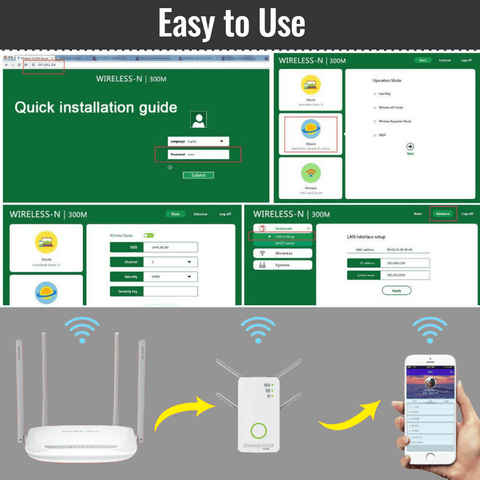
Start by connecting your computer or smartphone to the router via WiFi or Ethernet. Open a web browser and type the router’s IP address, commonly 192.168.0.1or 192.168.1.1, into the address bar. You’ll be prompted to enter a username and password—check your router’s label or manual if you don’t remember these details.
Once logged in, you’ll see the router’s control panel. It might look complicated, but look specifically for sections like Wireless Settingsor Advanced Setup. Don’t rush—take your time to familiarize yourself with the options, so you don’t miss anything important.
Switching To Repeater Or Bridge Mode
Look for the operating mode setting in your router’s menu. Many routers allow you to switch from the default Router Modeto Repeater Modeor Bridge Mode. Repeater Mode is ideal if you want to extend your WiFi coverage by repeating the existing signal. Bridge Mode connects two networks but doesn’t broadcast WiFi, so it’s less common for boosting wireless signals.
Choose the mode that fits your goal and save the settings. Your router may reboot during this process—don’t disconnect it. If you don’t see these modes, your router might not support them; a firmware update or third-party firmware like DD-WRT can sometimes add this functionality.
Setting Up Ssid And Password
Once in repeater or bridge mode, configure the network name (SSID) and password. You can either keep the same SSID as your main router for seamless switching or create a new one to distinguish the boosted network. Using the same SSID often makes your device connect automatically to the strongest signal, but a separate SSID gives you control over which network to join.
Set a strong password, ideally WPA2 or WPA3 encryption, to keep your network secure. Avoid default passwords to prevent unauthorized access. After saving these details, test the connection by moving around your space to see if the WiFi boost is effective where it used to be weak.
Positioning Your Booster Router
Place your booster router centrally for even coverage. High spots avoid obstructions, improving signal strength. Connect via Ethernet for stable performance.
Positioning your booster router is crucial for improving Wi-Fi coverage. A well-placed router can extend your network’s reach significantly. To maximize effectiveness, consider the following tips.Finding The Optimal Location
Place your booster router centrally in your home. This helps distribute the signal evenly. Avoid corners or enclosed spaces. Open areas allow signals to travel freely. Height matters too. Higher placement can improve coverage. Consider wall mounting or high shelves. Experiment with different spots for best results.Avoiding Signal Interference
Keep your booster router away from electronic devices. Microwaves and cordless phones can disrupt signals. Thick walls also block Wi-Fi. Minimize barriers between your main and booster router. Metal objects can reflect and weaken signals. Choose locations with fewer obstructions. Test signal strength in various areas. Adjust placement accordingly.Testing And Troubleshooting
Testing and troubleshooting your router as a WiFi booster is crucial to ensure you get the best signal possible. Without proper testing, you might miss weak spots or face connectivity issues. Let’s look at how you can check your signal strength and solve common problems effectively.
Checking Signal Strength
Start by measuring the WiFi signal strength in different areas of your home or office. You can use free apps like NetSpot or WiFi Analyzer on your phone or laptop. These tools display signal bars or percentages, helping you identify where the booster works well and where it doesn’t.
Try moving closer and farther from the router to see how the signal changes. Is there a particular spot where the signal suddenly drops? This can indicate interference or physical barriers like walls or furniture blocking the signal.
Another tip: test the internet speed along with the signal strength. Sometimes, a strong signal doesn’t guarantee fast speeds due to network congestion or router settings.
Common Issues And Fixes
If your boosted WiFi signal is weak or unreliable, check for these common issues:
- Incorrect router placement:Keep your booster router in an open, central location, away from thick walls or electronic devices that cause interference.
- Wrong settings:Ensure your router is set to “Access Point” or “Repeater” mode, depending on your model. Mismatched settings can cause connectivity drops.
- Firmware problems:Outdated firmware can reduce performance. Check the manufacturer’s site and update your router’s firmware regularly.
- IP address conflicts:Assign a static IP to your booster router to avoid conflicts with your primary router.
One time, I struggled with sudden disconnects until I realized my booster was set to the wrong channel. Switching to a less crowded WiFi channel instantly improved stability.
Have you checked if your devices are compatible with the booster’s frequency bands? Sometimes, devices only work on 2.4 GHz or 5 GHz, so matching these can enhance performance.
Tips For Better Wifi Performance
Improving your WiFi performance doesn’t always mean buying new equipment. Small changes and smart choices can make a big difference in how your network performs, especially when you’re using a router as a WiFi booster. These tips will help you get the most out of your setup and keep your connection strong and reliable.
Using Dual-band Routers
Dual-band routers broadcast on two different frequencies: 2.4 GHz and 5 GHz. The 2.4 GHz band covers a wider area but can be slower, while the 5 GHz band offers faster speeds but shorter range.
To boost your WiFi effectively, connect devices that need high speed, like laptops or streaming boxes, to the 5 GHz band. Use the 2.4 GHz band for devices that are farther away or don’t require as much speed, such as smart home gadgets.
Have you noticed your connection dropping when too many devices are connected? Splitting your devices across these two bands reduces congestion and improves overall performance.
Regular Router Maintenance
Keeping your router in good shape directly affects your WiFi quality. Dust, heat, and outdated firmware can slow down your network without you realizing it.
- Place your router in an open, elevated spot to avoid interference.
- Restart your router occasionally to clear memory and refresh connections.
- Check for firmware updates regularly and install them to fix bugs and improve security.
Think about the last time you updated your router’s firmware—did it make a difference? Staying on top of maintenance can prevent many common WiFi problems before they start.

Credit: www.instagram.com
Frequently Asked Questions
How Can I Use A Router As A Wifi Booster?
You can use a second router as a WiFi booster by configuring it as a repeater or access point. Connect it to your main router, adjust settings, and place it where the signal is weak to extend coverage effectively.
What Settings Are Needed To Boost Wifi With A Router?
Enable repeater or bridge mode on the secondary router. Match the SSID and password with the main router. Disable DHCP on the second router to avoid IP conflicts. These steps help extend the WiFi range without network issues.
Can Any Router Be Used As A Wifi Extender?
Not all routers support extender functions. Check if your router supports repeater, bridge, or access point modes. Older models might lack these features, so firmware updates or specific models are better suited for boosting WiFi.
Where Should I Place The Router For Best Wifi Boost?
Place the booster router halfway between your main router and WiFi dead zones. Avoid physical obstructions like walls and metal objects. Proper placement ensures stronger signals and better network coverage in weak areas.
Conclusion
Using a router as a WiFi booster can improve your signal range. It helps reach corners where WiFi is weak or missing. Setting it up takes a few simple steps anyone can follow. This method saves money compared to buying new equipment.
Enjoy a stronger, more reliable internet connection at home. Try it today and see the difference in your WiFi coverage. Small changes can make your online experience much better. Give your devices the signal they deserve.