

Are you ready to take control of your home with just a few taps? Programming your Kasa Smart Plug is easier than you think, and it can transform how you manage your devices every day.
Imagine turning lights on before you walk in the door or scheduling your coffee maker to brew right on time—all without lifting a finger. In this guide, you’ll discover simple steps to set up and program your Kasa Smart Plug so it works perfectly for your lifestyle.
Keep reading, and you’ll unlock the full potential of your smart home in no time.
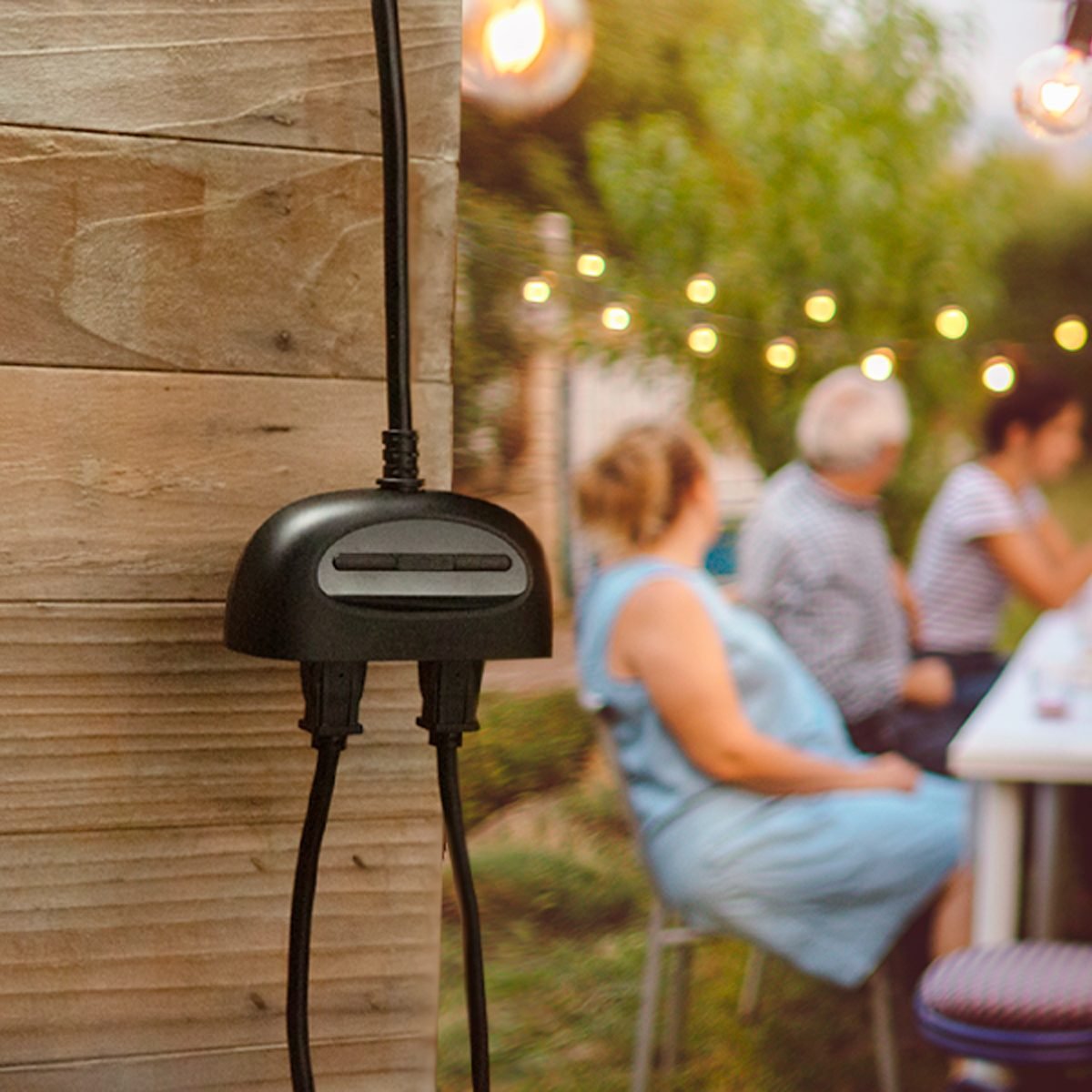
Credit: www.familyhandyman.com
Getting Started With Kasa Smart Plug
Starting with the Kasa Smart Plug is simple and quick. This section guides you through the first steps to get your smart plug ready to use. Follow these easy instructions to set up your device smoothly and enjoy smart control over your home appliances.
Unboxing And Checking Components
Open the package carefully. Inside, you will find the Kasa Smart Plug and a user guide. Check for any damage on the plug. Make sure the box contains:
- Kasa Smart Plug device
- Quick start guide
- Warranty and safety information
Ensure all parts are present before moving ahead.
Requirements And Compatibility
Your Kasa Smart Plug needs a stable Wi-Fi connection. It works with 2.4 GHz Wi-Fi networks only. Check if your smartphone supports the app. The plug is compatible with Android 5.0 or higher and iOS 10.0 or higher. Have a Kasa account ready for setup. The smart plug supports voice control with Alexa and Google Assistant.
Downloading The Kasa App
Download the Kasa app from Google Play or Apple App Store. The app is free and easy to use. Open the app and sign up for an account. Use your email address and create a password. The app will guide you through connecting the smart plug to Wi-Fi. Follow each on-screen instruction carefully. The app allows you to control and monitor your smart plug remotely.

Credit: www.youtube.com
Setting Up Your Kasa Smart Plug
Setting up your Kasa Smart Plug is easy and quick. This process lets you control your devices remotely. Follow simple steps to get your smart plug ready.
Plugging In And Powering On
Start by plugging the Kasa Smart Plug into a power outlet. Make sure the outlet is working properly. Once plugged in, the LED light on the plug will blink. This blinking means the plug is ready to connect.
Connecting To Wi-fi Network
Ensure your phone is connected to your home Wi-Fi network. The Kasa Smart Plug works only with 2.4 GHz Wi-Fi. Open your phone’s Wi-Fi settings and connect to the smart plug’s network, if required. This connection allows the plug to communicate with your home network.
Pairing With The Kasa App
Download the Kasa app from the App Store or Google Play. Open the app and create an account or log in. Follow the on-screen instructions to add a new device. Select the smart plug model and connect it to your Wi-Fi. Once paired, you can control the plug using the app.
Basic Programming Features
Basic programming features of your Kasa Smart Plug give you control over when and how your devices operate. These functions help save energy, enhance security, and bring convenience to your daily routine. Understanding how to set them up can transform your smart plug from a simple on/off device into a powerful tool that adapts to your lifestyle.
Creating On/off Schedules
Setting up on/off schedules lets you automate your devices to turn on or off at specific times. This is perfect for lamps, heaters, or coffee makers that you want running only during certain hours.
To create a schedule, open the Kasa app and select your smart plug. Tap on the schedule option, then choose the times you want your device to power on or off. You can set multiple schedules for different days, making it easy to match your weekly routine.
Have you ever left your lights on all day? Scheduling ensures that won’t happen again, saving you money and hassle.
Using Away Mode
Away Mode simulates your presence by turning devices on and off randomly within a set time frame. This feature adds a layer of security when you’re not home.
Activate Away Mode from the app, and your smart plug will automatically switch your lights or other devices on and off at intervals you specify. It’s a simple way to discourage potential intruders without lifting a finger.
Think about how much safer your home feels with lights cycling on at different times, even if you’re miles away.
Setting Timers
Timers let you set a countdown for your device to turn off or on after a certain period. This is useful for things like fans, irons, or holiday lights that shouldn’t run endlessly.
To set a timer, select your plug in the app and tap the timer option. Enter the desired time, and the smart plug will handle the rest.
Timers are a lifesaver if you often forget to turn off appliances. How many times have you left something running and wished for an automatic shutoff?
Advanced Automation Options
Advanced automation options for your Kasa Smart Plug open up a world of convenience and control. Beyond simple on/off schedules, you can tailor your smart home setup to respond exactly how you want. These features help you save energy, enhance security, and simplify daily routines.
Integrating With Voice Assistants
You can link your Kasa Smart Plug with popular voice assistants like Amazon Alexa, Google Assistant, or Microsoft Cortana. This lets you control your devices hands-free by simply speaking commands. Imagine turning on your coffee maker or lights without lifting a finger—voice control makes it effortless.
To set this up, you just need to enable the Kasa skill or action in your voice assistant app and connect your accounts. Afterward, you can say commands like “Alexa, turn off the living room lamp” or “Hey Google, start the fan.” Have you tried asking your assistant to control multiple plugs at once?
Creating Scenes And Groups
Grouping your Kasa plugs allows you to control multiple devices with a single tap. For example, you can create a “Movie Night” scene that turns off the main lights and powers on a lamp and your TV simultaneously. This saves time and adds a layer of personalization to your setup.
Scenes let you trigger multiple plugs together or based on specific conditions like time or your location. You can even customize scenes for weekdays versus weekends. What combination of devices would make your daily routine smoother?
Using Ifttt With Kasa Plug
IFTTT (If This Then That) expands your automation possibilities by connecting your Kasa Smart Plug with thousands of other apps and smart devices. You can create custom triggers that go beyond the Kasa app’s default features. For example, turn on a plug when you receive an email or when your phone connects to your home Wi-Fi.
Setting up IFTTT is simple: create an account, link your Kasa plug, and choose from existing applets or make your own. This tool lets you experiment with creative automations to fit your lifestyle. What unique triggers can you imagine to make your home smarter?
Troubleshooting Common Issues
Troubleshooting common issues with your Kasa Smart Plug ensures smooth operation. Problems can arise during setup or daily use. Knowing basic fixes saves time and frustration.
Most issues involve connectivity or app errors. Simple steps often restore function quickly. Follow these tips to resolve common problems.
Wi-fi Connection Problems
Check if your Wi-Fi network is working properly. The smart plug needs a stable 2.4 GHz connection. Many plugs do not support 5 GHz networks.
- Move the plug closer to the router for better signal.
- Restart your router and smart plug to refresh the connection.
- Ensure your Wi-Fi password is correct during setup.
- Disable any VPNs or firewalls that may block device access.
- Use the Kasa app to check if the plug is connected to the network.
Resetting The Smart Plug
Resetting fixes many problems by restoring factory settings. This clears previous configurations causing errors.
- Press and hold the power button on the plug for about 5 seconds.
- Wait until the LED light blinks amber and green.
- Release the button and wait for the plug to restart.
- Re-add the plug to the Kasa app as a new device.
App Sync And Update Errors
App errors can prevent control of the smart plug. Sync issues often result from outdated app versions or network problems.
- Check for updates in the app store and install the latest version.
- Log out and log back into the Kasa app.
- Force close the app and reopen it to refresh the connection.
- Ensure your phone has a stable internet connection.
- Reboot your device if the app still does not sync.
Credit: play.google.com
Tips For Optimal Use
Getting the most out of your Kasa Smart Plug means going beyond just setting it up. You want to save energy, keep your devices secure, and ensure everything runs smoothly over time. Here are some practical tips that can help you optimize your smart plug’s performance and protect your home network.
Energy Saving Practices
Smart plugs can help cut down your electricity bills if used wisely. Set schedules for devices that don’t need to run all day, like lamps or coffee makers. For instance, turning off your living room lights automatically when you leave for work can save a surprising amount of energy.
Consider grouping plugs by room or usage patterns to control multiple devices with one command. You might not realize how often you leave gadgets plugged in and powered unnecessarily. How often do you check which devices are drawing power even when not in use?
Security And Privacy Settings
Securing your smart plug helps protect your home network from unwanted access. Change the default password to something strong and unique right after setup. You can also restrict access to trusted devices only, so you know who can control your plugs.
Review the app permissions regularly and disable any that seem unnecessary. Sharing your home’s network with too many devices can open doors to hackers. Have you checked your smart plug’s security settings recently?
Regular Firmware Updates
Firmware updates aren’t just about new features; they fix bugs and close security gaps. Make it a habit to check for updates in the Kasa app every few weeks. Enabling automatic updates is even better to keep your plug protected without extra effort.
Ignoring updates can lead to performance issues or vulnerabilities that put your smart devices at risk. Have you ever experienced connectivity problems that disappeared after updating a device? That’s a clear sign updates matter.
Frequently Asked Questions
How Do I Set Up A Kasa Smart Plug?
To set up a Kasa Smart Plug, download the Kasa app, plug in the device, and follow the in-app instructions to connect it to Wi-Fi. Ensure your phone is on the same network for seamless setup and control.
Can I Control Kasa Smart Plug Remotely?
Yes, Kasa Smart Plugs can be controlled remotely using the Kasa app. This allows you to turn devices on or off from anywhere with an internet connection.
Is The Kasa Smart Plug Compatible With Voice Assistants?
Kasa Smart Plugs support voice control via Amazon Alexa, Google Assistant, and Microsoft Cortana. You can use voice commands to manage your plugged-in devices easily.
How Do I Schedule Devices With Kasa Smart Plug?
You can schedule devices by using the Kasa app’s scheduling feature. Set specific times for your devices to turn on or off automatically for convenience and energy savings.
Conclusion
Programming your Kasa Smart Plug is simple and fast. Follow the steps carefully to set it up right. Control your devices with ease and save energy every day. Enjoy the convenience of smart home technology without stress. Keep your home safe and comfortable with just a few taps.
Try it now and see how it fits your lifestyle. Small changes can make a big difference in daily routines. Smart plugs help you live smarter, not harder.