

Are you tired of slow internet or weak Wi-Fi signals in certain areas of your home? A Netgear WiFi extender could be the simple solution you need.
Installing one might sound tricky, but with the right steps, you can boost your Wi-Fi coverage quickly and easily. In this guide, you’ll learn exactly how to set up your Netgear WiFi extender so you get strong, reliable internet wherever you want it.
Keep reading, and by the end, you’ll have your Wi-Fi reaching every corner of your space without frustration.
Choosing The Right Netgear Extender
Choosing the right Netgear extender is key to boosting your WiFi signal effectively. Picking the wrong model can leave you with weak coverage or compatibility headaches. Think about your specific needs before making a choice to ensure smooth and fast internet throughout your space.
Types Of Netgear Extenders
Netgear offers several types of extenders, each designed for different needs.
- Plug-in Extenders:Compact and easy to install, these plug directly into a wall outlet. Great for small to medium homes.
- Desktop Extenders:Larger units that sit on a flat surface. They usually offer stronger performance and more features.
- Mesh WiFi Extenders:Work with your existing router to create a seamless network. Ideal if you want consistent speeds across a large area.
Which type fits your lifestyle? If you have a small apartment, a plug-in model might be enough. For bigger homes, consider mesh options.
Compatibility With Routers
Your extender must work smoothly with your current router. Netgear extenders are often designed to support a wide range of routers, but checking compatibility saves frustration.
- Look for extenders that support your router’s WiFi standard (like 802.11ac or WiFi 6).
- Ensure the extender supports the same frequency bands (2.4 GHz, 5 GHz) as your router.
- Some extenders are optimized to work best with Netgear routers, but many also support other brands.
Have you checked your router’s specs lately? Matching these details ensures your extender performs at its best.
Coverage Area Considerations
Think about the size and layout of the area you want to cover. An extender that covers 1,000 square feet might be perfect for a small home but insufficient for a large office.
- Measure the distance between your router and the area needing better signal.
- Consider walls, floors, and other obstacles that can weaken WiFi signals.
- Choose an extender with coverage slightly larger than your target area to avoid dead zones.
Have you noticed certain rooms where your signal drops? Pinpoint those spots to guide your extender choice and placement.
Preparing For Installation
Preparing your Netgear WiFi extender for installation is crucial for a smooth setup. It helps ensure the extender works efficiently and improves your home network. Taking a few simple steps before installation saves time and avoids common issues.
Unboxing And Checking Components
Open the box carefully and remove all items.
- Netgear WiFi extender device
- Power adapter or plug
- Quick start guide or manual
- Ethernet cable (if included)
Check each component for damage. Keep the manual handy for reference during setup.
Optimal Placement Tips
Choose a location with a strong signal from your main router.
- Place the extender halfway between your router and the weak signal area
- Avoid walls, metal objects, and large appliances that block signals
- Higher spots often provide better coverage
Test different spots to find the best signal strength before final placement.
Power And Connectivity Requirements
Ensure the power outlet near the chosen location is working well.
Your extender needs a stable power source to function properly.
Check if your router supports Ethernet connections, helpful for setup and faster speeds.
Have your WiFi network name and password ready for quick configuration.
Connecting The Extender
Connecting your Netgear WiFi extender is a crucial step to boost your network range. This process links the extender to your main router, improving signal strength in weak areas. There are two main ways to connect the extender: using WPS or manual setup through the web interface. Both methods are straightforward and require only a few steps.
Using Wps For Quick Setup
WPS (Wi-Fi Protected Setup) offers a fast way to connect your extender. Start by plugging in the extender near your router. Press the WPS button on the router. Then, press the WPS button on the extender within two minutes. The extender’s LED light will blink and then stay solid. This means the connection is successful.
If the light does not turn solid, try pressing the buttons again. Place the extender closer to the router for a stronger signal. WPS is the easiest method, needing no password entry.
Manual Setup Via Web Interface
Manual setup gives more control over your extender’s connection. First, connect your device to the extender’s default WiFi network. Open a web browser and enter “http://mywifiext.net” in the address bar.
Log in using the default username and password found in the extender’s manual. Follow the setup wizard instructions. Select your home WiFi network from the list. Enter your WiFi password carefully. Choose a name for the extender network or keep the default one. Complete the setup and wait for the extender to reboot.
Troubleshooting Connection Issues
Sometimes, the extender may not connect as expected. Check if the extender is within range of your router. Avoid placing it near thick walls or metal objects. Restart both the router and extender. Confirm the WiFi password is correct during manual setup.
If the extender LED shows a weak or no signal, move it closer to the router. Clear your browser cache if the web interface does not load. Reset the extender to factory settings if problems persist. Consult the Netgear support site for specific error codes.

Credit: www.wifi-extsetup.com
Configuring Network Settings
Configuring the network settings is a key step after installing your Netgear WiFi extender. It helps create a stable connection and improves your WiFi range. These settings control how the extender connects to your main router and how devices link to it.
Adjust the settings carefully for the best network performance. You can customize the network name, set security options, and tweak advanced features. Each change affects your WiFi coverage and safety.
Setting Extended Network Name
The extended network name, or SSID, tells devices which network to join. By default, the extender may add “_EXT” to your router’s name. You can change this to something easy to recognize.
Choose a name that matches your main network for seamless switching. Or use a unique name to identify the extender’s signal clearly. Enter the new name in the extender’s setup page under the wireless settings.
Securing The Extended Network
Security keeps your network safe from unwanted users. Use WPA2 or WPA3 encryption for strong protection. Avoid older security types like WEP, as they are less secure.
Set a strong password with a mix of letters, numbers, and symbols. This password should be different from your main router’s password for added security. Save the changes to activate the new security settings.
Adjusting Advanced Settings
Advanced settings let you optimize your extender’s performance. You can select the WiFi band, either 2.4 GHz or 5 GHz, depending on your needs. The 2.4 GHz band covers longer distances but is slower. The 5 GHz band offers faster speeds but covers a smaller area.
Adjust channel settings to reduce interference from other networks nearby. Set the extender to automatic channel selection or pick a channel manually. You can also enable features like beamforming to focus the signal toward connected devices.
Testing And Optimizing Performance
Testing and optimizing the performance of your Netgear WiFi extender is essential to ensure you get the best possible coverage and speed. After installation, don’t just assume everything works perfectly. Taking a few moments to check signal strength, run speed tests, and adjust the extender’s location can dramatically improve your network experience.
Checking Signal Strength
Start by measuring the signal strength where your devices usually connect. Many smartphones and laptops have built-in WiFi signal indicators, but dedicated apps give you more precise numbers. Look for a signal strength above -70 dBm for reliable performance.
If your signal is weak, it might be time to rethink the extender’s placement. Remember, walls and furniture can block signals more than you expect. Have you checked how the signal changes in different rooms?
Speed Testing Methods
Speed tests tell you how fast your internet really is after extending the network. Use reputable speed testing websites or apps like Speedtest.net or Fast.com. Test the speed near the extender and compare it to your main router’s speed.
Run tests multiple times throughout the day to spot any fluctuations. This helps you understand if your extender is consistent or if interference is slowing things down. Are you noticing slower speeds at certain times?
Relocating For Better Coverage
Sometimes, small changes in the extender’s spot make a big difference. Try moving it closer to the router if the signal is weak, but not so close that it overlaps too much. The ideal spot is halfway between your router and the dead zone.
Test the signal and speed at each new location before settling. Don’t hesitate to experiment with different heights and distances. Have you found a sweet spot yet where your devices connect seamlessly?
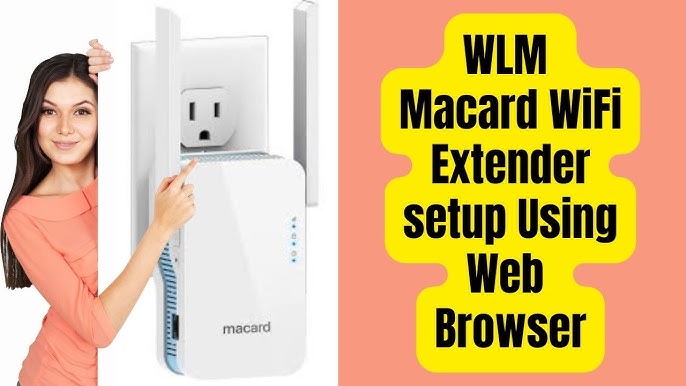
Credit: www.youtube.com
Maintaining Your Netgear Extender
Maintaining your Netgear WiFi extender is key to keeping your network fast and reliable. Neglecting this simple routine can cause slow connections or dropped signals, which nobody wants. Let’s look at some easy ways to keep your extender running smoothly.
Firmware Updates
Firmware updates fix bugs and improve performance. Check for updates regularly by logging into your extender’s admin panel through its IP address or the Netgear app.
Updating is usually just a click away. If you’ve ever delayed an update and then faced random disconnects, you know how important this is. Keeping firmware current ensures your extender stays compatible with your router and new devices.
Resetting The Extender
If your extender acts strangely or the connection drops often, a reset can help. Press and hold the reset button for about 10 seconds until the lights blink. This restores factory settings and clears any configuration errors.
Remember, after resetting you’ll need to set it up again. Think of it as a quick fix that can save you from hours of troubleshooting. Have you ever fixed a tech issue by simply restarting it? This works the same way.
Regular Maintenance Tips
- Keep it dust-free:Dust can block ventilation and cause overheating. Wipe your extender gently every few weeks.
- Place it wisely:Avoid placing it near thick walls or electronic devices that cause interference.
- Monitor signal strength:Use the Netgear app to check if the extender’s location still gets a strong router signal.
- Restart occasionally:A quick power cycle once a month can refresh connections and improve speed.
Are you giving your extender the care it needs? Small habits can save you frustration and keep your WiFi strong.

Credit: routerloginsetup1.home.blog
Frequently Asked Questions
How Do I Set Up A Netgear Wifi Extender?
Plug in the extender near your router. Use a web browser to visit mywifiext. net. Follow the on-screen setup wizard to connect the extender to your WiFi network. Move the extender to a location with weak WiFi for better coverage.
What Is The Best Location For A Netgear Extender?
Place the extender halfway between your router and the WiFi dead zone. Ensure it receives a strong signal from the router. Avoid obstacles like walls or metal objects. This placement maximizes WiFi range and improves overall network performance.
How Can I Reset My Netgear Wifi Extender?
Locate the reset button on your extender. Press and hold it for 10 seconds using a paperclip. Release the button and wait for the extender to reboot. This restores factory settings and allows you to set it up again.
Why Won’t My Netgear Extender Connect To Wifi?
Check if the extender is within router range. Ensure you enter the correct WiFi password during setup. Restart both the extender and router. Update the extender’s firmware via Netgear’s support site if problems persist.
Conclusion
Installing a Netgear WiFi extender can boost your home internet signal. Place the extender where your router’s signal is still strong. Follow the steps carefully for easy setup. Check the connection to make sure it works well. A stronger WiFi means fewer dead spots and better speeds.
Keep the extender updated for the best performance. Enjoy a more reliable internet in every room. Simple steps, better WiFi. You’re all set!