

Is your WiFi router acting up and slowing down your connection? You’re not alone, and the good news is—fixing it might be easier than you think.
Imagine streaming your favorite show or working without interruptions again. In this guide, you’ll discover simple, effective steps to get your WiFi router back in top shape quickly. Keep reading, and say goodbye to those frustrating drops and slow speeds for good.
Credit: www.xcitium.com
Common Wifi Issues
Wifi issues can be frustrating, especially when you rely on a steady connection for work or entertainment. Understanding the common problems that affect your router helps you troubleshoot effectively. Let’s look at some frequent wifi issues and what they might mean for your setup.
Slow Internet Speeds
Slow speeds can make simple tasks like browsing or streaming a chore. This might happen if many devices are using the network at once or if your router is outdated. Have you checked if background apps are eating up bandwidth without you knowing?
Another cause could be interference from other electronics or thick walls blocking the signal. Try moving your router to a more central location or closer to where you use the internet most. Updating your router’s firmware can also improve speed.
Frequent Disconnects
There’s nothing more annoying than your wifi dropping out repeatedly. This often happens when the router overheats or loses power briefly. Make sure your router is in a cool, ventilated spot and the power supply is stable.
Sometimes, channel interference from nearby networks can cause disconnects. Using tools to find the least crowded channel can stabilize your connection. Have you noticed if disconnects happen at specific times?
No Connection
If your device can’t connect at all, the problem might be simple or complex. Check if the router’s lights indicate it’s working properly—no lights usually means no power or a hardware failure.
Resetting the router often solves connection issues. If that doesn’t help, verify your network settings or contact your internet service provider. Could a recent change in your setup be causing the no-connection problem?
Weak Signal Strength
A weak signal means your device struggles to maintain a good connection. Distance is a big factor—walls, floors, and furniture all reduce signal strength. Have you tried moving closer to the router to see if the signal improves?
WiFi extenders or mesh networks can boost coverage in larger homes. Adjusting the antenna direction or upgrading to a router with better range might also help. What’s the layout of your space, and where do you need the strongest signal?
Basic Router Checks
Before diving into complex troubleshooting, start with basic router checks. These quick inspections often reveal simple issues that disrupt your WiFi. Paying attention to power, connections, and placement can save you time and frustration.
Power And Cable Connections
Ensure your router is plugged in securely and the power light is on. Loose cables or a disconnected power source are common reasons for WiFi failure.
Check all cables—power, Ethernet, and any other connections—to confirm they’re firmly attached. If you notice any damaged wires, replacing them might immediately restore your connection.
Router Placement
Where you place your router affects signal strength more than you might think. Avoid corners, thick walls, or metal objects that block WiFi signals.
Try positioning your router higher up, like on a shelf or table, to improve coverage. Have you ever noticed better signal in one room but dead zones in another? This simple adjustment can make a big difference.
Restarting The Router
Turning your router off and on again refreshes its system and clears temporary glitches. It’s a quick fix that solves many connectivity problems.
Unplug the router, wait about 30 seconds, then plug it back in. This gives the device a chance to reset and often restores your internet faster than you expect.
Firmware Updates
Firmware updates are crucial for keeping your WiFi router running smoothly and securely. These updates fix bugs, improve performance, and add new features that can enhance your network experience. Ignoring firmware updates can leave your router vulnerable to security risks and connectivity issues.
Checking For Updates
To check for firmware updates, start by logging into your router’s admin panel. You usually access this by typing the router’s IP address into your web browser, commonly 192.168.1.1or 192.168.0.1. If you’re unsure, check your router’s manual or the label on the device itself.
Once logged in, look for a section named Firmware Update, Router Upgrade, or something similar. Some routers even notify you automatically when an update is available. If you don’t see an update option, visit the manufacturer’s website and search for your router model to find the latest firmware.
Installing Firmware
Before you install any firmware, make sure to back up your current router settings. This helps you restore your configuration if something goes wrong during the update. Also, ensure your device stays powered on throughout the process to avoid damaging the router.
Most routers allow you to upload the firmware file directly through the admin panel. If your router supports automatic updates, just click the Updatebutton and wait for the process to complete. After installation, the router will usually restart on its own.
Have you ever experienced slow internet or random disconnections that vanished after a firmware update? That’s a clear sign of how important these updates can be. Don’t let outdated firmware hold back your WiFi performance or security.
Network Settings
Network settings play a crucial role in how your WiFi router performs. Tweaking these settings can often solve connection issues without needing to call a technician. By understanding and adjusting key options like network configurations, WiFi channels, and security settings, you take control of your internet experience.
Resetting Network Configurations
Resetting your network settings can clear out glitches that cause slow or dropped connections. You can do this by logging into your router’s admin panel and selecting the option to restore default network settings.
This process removes custom settings like IP addresses and DNS servers, so be ready to re-enter these if you use specific configurations. I once fixed a persistent connection drop simply by resetting the network settings, saving hours of frustration.
Changing Wifi Channels
WiFi channels can get crowded, especially in apartment buildings or neighborhoods with many routers nearby. Changing your router’s channel can reduce interference and boost signal strength.
Most routers use channels 1, 6, or 11 on the 2.4 GHz band. Try switching between these to see which offers the best connection. You can use free apps to scan for the least congested channel around you.
Adjusting Security Settings
Security settings don’t just protect your network—they can impact performance too. Using outdated security protocols like WEP can slow down your WiFi and leave you vulnerable.
Switch to WPA2 or WPA3 for stronger, faster protection. Also, check if your router allows you to limit connected devices or enable guest networks to keep your main connection secure and efficient.
Advanced Troubleshooting
Advanced troubleshooting can turn a frustrating wifi issue into a quick fix. It goes beyond simple restarts and involves deeper steps that can restore your connection. These techniques require a bit more attention but often solve persistent problems that basic fixes can’t.
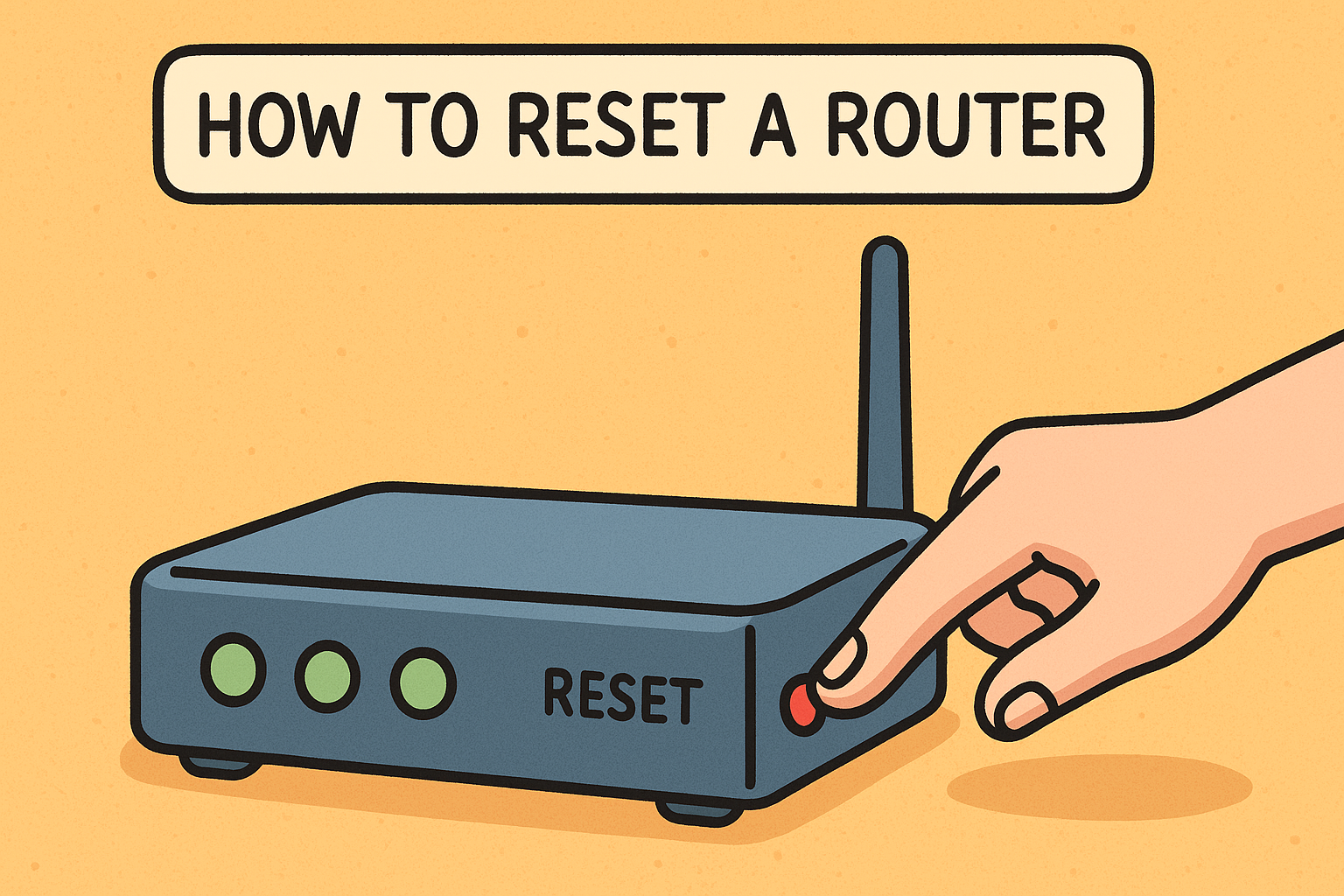
Factory Resetting The Router
Sometimes your router’s settings get tangled, causing slow speeds or dropouts. A factory reset wipes all custom settings and restores the router to its original state. Before you do this, make sure you have your ISP login details and any special configurations saved.
To reset, press and hold the small reset button (usually found on the back) for about 10 seconds. The router will reboot and return to default settings. After this, you’ll need to set up your wifi name and password again.
Using Diagnostic Tools
Diagnostic tools can help you pinpoint where the problem lies in your network. Many routers come with built-in diagnostics accessible via the admin panel. These tools test connectivity, signal strength, and can identify hardware faults.
You can also use software like Wireshark or NetSpot for detailed analysis. These apps show data traffic and help locate weak spots in your wifi coverage. Have you ever checked which devices consume the most bandwidth? It’s surprising how much impact one device can have.
Checking For Interference
Interference is a silent speed killer for your wifi. Other electronics like microwaves, cordless phones, or even neighboring wifi networks can disrupt your signal. Try moving your router away from these devices and placing it higher off the ground.
Changing your wifi channel to one less crowded can also improve performance. Most routers allow you to pick channels manually—experiment to find the clearest one. Have you noticed your wifi gets worse at certain times? This might be due to overlapping signals from nearby networks.

Credit: www.youtube.com
When To Replace Your Router
Knowing when to replace your wifi router can save you hours of frustration and improve your internet experience. Not every slow connection or drop means you need a new device. But certain signs and performance drops clearly indicate that your router has reached the end of its useful life.
Signs Of Hardware Failure
Hardware failure can be subtle at first. You might notice your router overheating or its lights blinking irregularly. Frequent disconnections without any clear network issues often point to internal problems.
If you’ve tried resetting or updating the firmware multiple times with no success, your router’s hardware might be failing. Physical damage, such as cracked antennas or ports that don’t hold cables firmly, is another clear sign. Consider how often your router crashes or requires a restart—too many times means the hardware can no longer keep up.
Evaluating Router Age And Performance
Routers don’t last forever. Technology changes quickly, and older routers might not support the latest wifi standards or security features. If your router is more than 4-5 years old, it might be time to look for a replacement, especially if you’ve upgraded your internet plan recently.
Think about your current internet speed compared to what your router supports. Is your device holding back your connection? Are multiple devices struggling to stay connected? Newer routers handle several devices more efficiently and offer better range.
- Check your router’s maximum wifi speed and compare it with your internet plan.
- Look up if your router supports modern standards like Wi-Fi 5 or Wi-Fi 6.
- Consider if security updates are still provided by the manufacturer.
Have you ever kept a router just because it “still works,” only to realize it slowed your whole home network? Replacing your router can sometimes be the easiest fix that dramatically improves your wifi experience.

Credit: www.youtube.com
Frequently Asked Questions
How Do I Reset My Wifi Router Safely?
To reset your router, press and hold the reset button for 10 seconds. This restores factory settings and often fixes connectivity issues quickly.
Why Is My Wifi Router Not Connecting To The Internet?
Check if the modem is working and cables are secure. Restart both router and modem to refresh connections and fix common errors.
How Can I Improve Wifi Signal Strength At Home?
Place your router centrally and away from walls. Avoid interference from electronics and update firmware to enhance signal quality.
When Should I Replace My Wifi Router?
Replace your router if it’s over 5 years old or can’t support your internet speed. Frequent disconnects also indicate the need for a new device.
Conclusion
Fixing your WiFi router can save time and money. Start with basic checks like cables and power. Restarting the router often solves many problems. Adjust settings carefully to improve connection quality. Keep your router firmware up to date. Place the router in a central, open spot.
Avoid interference from other devices nearby. If problems persist, contact your internet provider for help. Small steps can make a big difference in WiFi speed. Stay patient and try each method slowly. Good WiFi means better browsing, streaming, and working online.