

Is your WiFi signal weak in some corners of your home? You don’t need to spend money on a new device to fix it.
What if you could use your old router to boost your internet connection? Imagine getting stronger WiFi in every room without extra cost. You’ll learn simple, step-by-step ways to extend your WiFi using a router you already have. Ready to make your internet faster and more reliable?
Keep reading, and you’ll find out exactly how to do it.
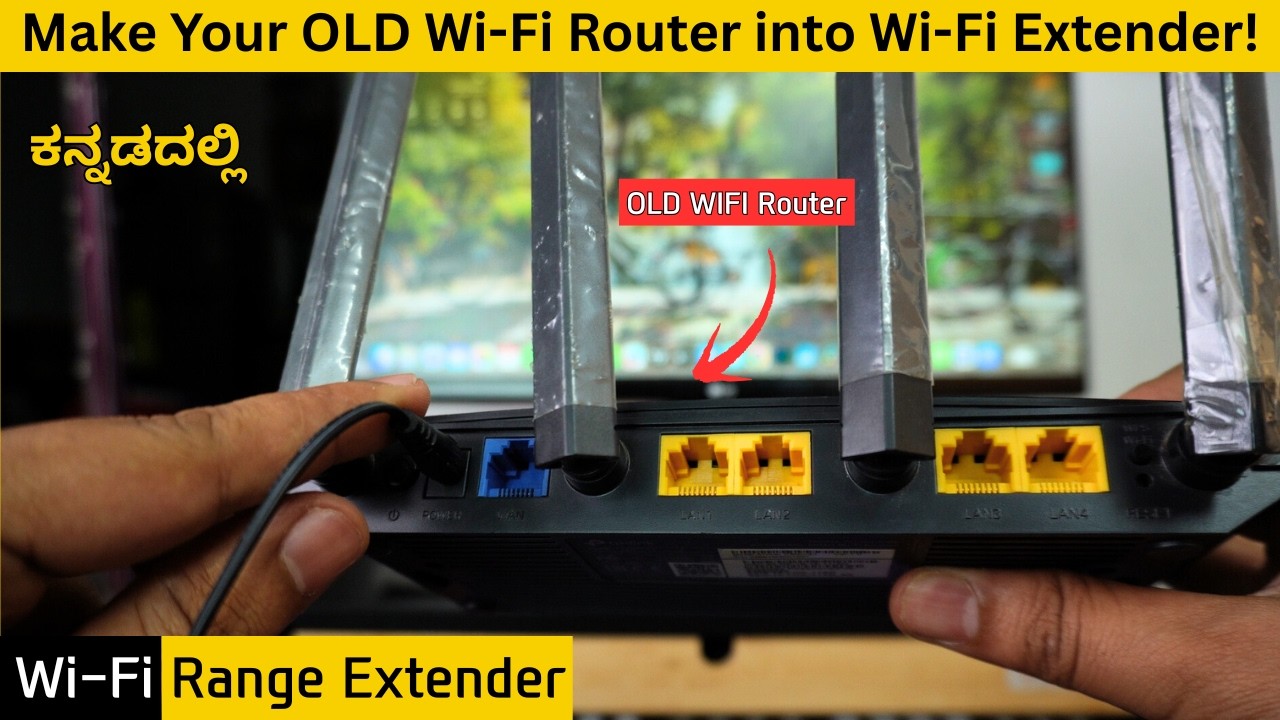
Credit: www.youtube.com
Choosing The Right Router
Choosing the right router to extend your WiFi can make all the difference in performance and reliability. Not every old router is suitable for this task, so it’s important to pick one that fits your network needs perfectly. Let’s dig into what you should look for before repurposing that device gathering dust.
Check Compatibility
First, ensure your old router supports the mode you want to use, such as repeater, bridge, or access point mode. Many older routers might not have these options in their settings, which could limit their usefulness as WiFi extenders.
Look at the router’s firmware version and brand compatibility with your primary router. Sometimes, routers from different brands don’t communicate well, causing connection drops or slow speeds.
Have you checked if your router has the necessary Ethernet ports or supports wireless bridging? These features are crucial if you want a stable, extended network without constant interruptions.
Assess Router Capabilities
Evaluate the router’s WiFi standards (like 802.11n, 802.11ac, or 802.11ax). A router with outdated standards may bottleneck your connection and reduce overall speed.
Consider the router’s frequency bands—dual-band routers offer both 2.4 GHz and 5 GHz, which helps reduce interference and improves speed. If your old router only supports 2.4 GHz, you might experience slower performance in busy environments.
Don’t overlook the router’s hardware specs, such as CPU power and RAM. A router with weak hardware can struggle to handle multiple devices, leading to lag or dropped connections.
Think about your home’s size and layout too. A router with stronger antennas or external antenna options can cover larger areas better than compact models.

Credit: www.threads.com
Preparing Your Old Router
Preparing your old router is an important first step to extend your WiFi network. This process ensures the device works smoothly and avoids conflicts with your main router. A fresh start helps the router perform better as a WiFi extender.
Before using the old router as a range extender, clear any previous settings. Also, check for the latest firmware updates. These actions improve stability and security for your extended network.
Reset To Factory Settings
Resetting your old router clears all previous configurations. It returns the device to the state it was in when new. This avoids issues from old settings that might block the extender function.
- Find the reset button, usually a small hole on the back.
- Press and hold it for about 10 seconds using a paperclip.
- Wait for the router to restart fully.
This process ensures a clean setup. You can now configure the router for extending your WiFi signal.
Update Firmware
Firmware is the software inside your router. It controls how the router works. Keeping firmware updated fixes bugs and adds new features.
- Connect your computer to the router via Ethernet or WiFi.
- Open the router’s web interface by typing its IP address in a browser.
- Log in using the router’s username and password.
- Find the firmware update section in the settings menu.
- Check for updates and follow the prompts to install them.
Updating firmware increases the router’s performance and security. It helps the device work well as a WiFi extender.
Configuring Router As Repeater
Configuring your old router as a repeater is a smart way to extend your WiFi coverage without buying new equipment. It breathes new life into devices gathering dust and boosts your network range effectively. The process may seem technical at first, but breaking it down into simple steps makes it manageable for anyone.
Access Router Settings
Start by connecting your computer or smartphone to the old router using a LAN cable or WiFi. Open a web browser and type the router’s IP address, usually something like 192.168.1.1or 192.168.0.1. If you don’t know it, check the label on the router or the manual.
Log in using the default username and password, often “admin” for both. If you changed these before, use your custom credentials. Once inside, you’ll find the control panel where all the magic happens.
Enable Repeater Mode
Look for the wireless settings section or a tab named “Operation Mode,” “Wireless Mode,” or similar. Not all routers call it repeater mode; some may say “Range Extender” or “Bridge Mode.” If you can’t find it, check the manual or the router’s online support page.
Activate the repeater mode and select your main WiFi network from the list of available networks. You’ll need to enter the main network’s password to allow the router to connect and extend the signal. Remember to save or apply these settings before moving on.
Set Ssid And Password
Now, decide if you want the repeater to use the same WiFi name (SSID) and password as your main router or create a new one. Using the same SSID offers seamless switching between networks as you move around your home. Choosing a different SSID helps you identify which router you’re connected to but may require manual switching.
Set a strong password to keep your extended network secure. Avoid simple or default passwords to protect your devices and data. Once configured, restart the old router to apply all changes and start enjoying wider WiFi coverage.
Connecting Routers
Connecting your old router to your main router helps extend your WiFi range. This setup creates a stronger network with better coverage. Proper connection between routers ensures stable and faster internet throughout your home.
Use Ethernet Cable For Stability
Using an Ethernet cable to connect routers offers the most stable link. It reduces interference and packet loss compared to wireless links. Plug one end of the cable into a LAN port on your main router. Connect the other end to a LAN port on your old router.
This wired connection improves speed and network reliability. The setup allows your old router to act as a WiFi extender without signal drops.
Set Ip Addresses To Avoid Conflicts
Assign unique IP addresses to each router to prevent conflicts. Check your main router’s IP, often 192.168.1.1 or similar. Set the old router’s IP to the same subnet but a different number, like 192.168.1.2.
Disable the DHCP server on your old router. This stops it from handing out IP addresses and avoids clashes. Proper IP settings keep devices connected smoothly across both routers.
Positioning For Optimal Coverage
Extending your WiFi signal with an old router can boost connectivity throughout your home. Proper positioning of the router is key for effective coverage. Placement affects how well the signal spreads, ensuring all areas receive strong WiFi. Avoid common mistakes that weaken signal strength.
Find Ideal Location
Choose a central location in your house. This ensures balanced signal distribution. Place the router away from thick walls that can block signals. High spots like shelves or tables enhance coverage. Avoid corners that may trap signals.
Avoid Interference Sources
Keep the router away from electronic devices. Microwaves and cordless phones can cause interference. Metal objects also disrupt WiFi signals. Ensure the router is not near mirrors or large metal surfaces. These materials reflect signals, reducing effectiveness.
Testing And Troubleshooting
Testing and troubleshooting are key to extending WiFi successfully. After setting up your old router as a repeater or access point, check its performance. Testing helps confirm the signal reaches desired areas. Troubleshooting solves common problems that block good WiFi coverage. Follow these steps to ensure a smooth WiFi extension.
Check Signal Strength
Use a smartphone or laptop to test WiFi signal strength near the old router. Move around the house to find weak spots. Strong signals show good coverage from the extended router. Weak or no signal means adjustment is needed.
- Look for signal bars or percentage in WiFi settings.
- Use free apps like WiFi Analyzer for detailed results.
- Test multiple locations to compare signal quality.
Place the old router where the main router’s signal is still strong. Avoid walls or metal objects that block signals. This ensures the extended WiFi has a strong base connection.
Fix Common Issues
Check these common problems if your extended WiFi is weak or unstable.
- Incorrect IP Settings:Make sure the old router has a different IP address from the main router.
- Wrong Mode:Confirm the old router is set to repeater, bridge, or access point mode.
- Firmware Outdated:Update the router’s firmware for better compatibility and performance.
- Interference:Change the WiFi channel to avoid interference with other networks.
- Distance Too Far:Move the old router closer to the main router to strengthen the link.
Restart both routers after changes. This refreshes connections and often fixes small glitches. Test the signal again to verify improvements.

Credit: www.youtube.com
Frequently Asked Questions
How Can I Use An Old Router As A Wifi Extender?
You can repurpose an old router by configuring it as a WiFi repeater or access point. This boosts your network range without extra cost.
What Settings Must Be Changed To Extend Wifi Range?
Change your old router’s IP address to avoid conflicts. Enable repeater or bridge mode and match the main WiFi’s SSID and password.
Is Using An Old Router To Extend Wifi Effective?
Yes, it can effectively increase WiFi coverage. However, performance depends on the old router’s specs and placement within your home.
Do I Need Ethernet Cables To Extend Wifi With An Old Router?
Not necessarily. You can extend WiFi wirelessly in repeater mode or use Ethernet for access point mode for more stable connections.
Conclusion
Extending your WiFi with an old router saves money and boosts coverage. It helps you get better internet in every corner of your home. Setting it up is simple and does not need special skills. Keep your old router updated for the best results.
Enjoy stronger WiFi without buying new equipment. This small change makes a big difference. Give your internet a helpful boost today.