

Is your WiFi signal weak in certain parts of your home? Frustrated by slow internet or dropped connections just when you need them most?
You’re not alone. Many people struggle with spotty WiFi, but the good news is—you don’t have to live with it. Imagine streaming your favorite shows or working from any corner of your house without interruptions. You’ll discover simple, effective ways to extend the range of your WiFi.
By the time you finish reading, you’ll have easy tips to boost your signal and enjoy faster, more reliable internet everywhere you need it. Let’s get started!
Credit: www.tp-link.com
Common Causes Of Limited Wifi Range
Understanding why your WiFi range is limited is the first step to fixing it. Many factors can block or weaken your signal, making your connection spotty or slow. Identifying common causes helps you target the right solutions and improve your internet experience.
Physical Obstacles
Walls, floors, and furniture can block WiFi signals. Thick materials like concrete, brick, or metal cause the most trouble. Even something as simple as a large fish tank or a closed door can reduce your signal strength.
Have you noticed your WiFi gets weaker in certain rooms? That’s often due to these obstacles standing between your router and your device.
Interference From Other Devices
Many household gadgets use radio waves, which can interfere with your WiFi signal. Microwaves, cordless phones, baby monitors, and Bluetooth devices often operate on the same frequency as your router. This overlap can cause your connection to drop or slow down unexpectedly.
Try turning off or moving these devices to see if your WiFi improves. Sometimes, just a small change in device placement makes a big difference.
Router Placement Issues
Where your router sits matters a lot. Placing it in a corner, near the floor, or inside a cabinet can limit its reach. Ideally, your router should be in a central, elevated spot, away from thick walls and electronic clutter.
Think about your current setup. Could moving your router improve coverage in your problem areas?
Outdated Hardware
Older routers and devices may not handle modern WiFi standards well. They can slow down your network and reduce range. Firmware that hasn’t been updated can also cause performance issues.
If your router is more than a few years old, it might be time to consider an upgrade. Newer models often provide better coverage and speed, improving your overall WiFi experience.
Optimizing Router Settings
Optimizing your router settings can significantly extend the range and improve the quality of your WiFi signal. Many people overlook these settings, but small tweaks can make a big difference. Adjusting your router’s configuration allows you to tailor the network to your specific environment and needs.
Choosing The Best Wifi Channel
Interference from neighboring networks can slow down your WiFi. Routers often default to crowded channels, especially in apartment buildings or dense neighborhoods.
Check which channels nearby networks use and switch your router to a less congested one. Tools like WiFi Analyzer apps make this easy. A clearer channel means fewer interruptions and a stronger signal.
Adjusting Transmission Power
Most routers let you adjust the transmission power, controlling how far the signal reaches. Increasing this power can boost your WiFi range but may also cause interference if set too high.
Try raising the transmission power step-by-step and test the coverage each time. Keep in mind that walls and furniture will still limit the signal, so balance power with your home layout.
Enabling Quality Of Service
Quality of Service (QoS) prioritizes certain types of traffic, like video calls or gaming, over others. Activating QoS helps ensure your important devices get the best connection even when many devices are online.
Set QoS rules based on your daily internet use. This can reduce lag during critical activities and improve your overall WiFi experience.
Updating Router Firmware
Router manufacturers regularly release firmware updates that fix bugs and improve performance. Outdated firmware can cause slower speeds and weaker signals.
Check your router’s admin page for firmware updates and install them promptly. Updated firmware often includes enhancements that increase WiFi range and stability.
Improving Router Placement
Improving your router placement can boost your WiFi range significantly. Small changes in location can reduce interference and signal loss. This helps your devices connect faster and stay stable. Let’s explore key ways to place your router better.
Centralizing Your Router
Place your router near the center of your home. This spreads the WiFi signal evenly to all rooms. Avoid placing the router at one end of the house. Walls and doors can block signals and create weak spots. Centralizing ensures better coverage for every device.
Elevating Router Position
Keep your router off the floor and on a higher shelf or table. WiFi signals travel better when the router is elevated. Signals spread downward and outward more easily from a higher spot. Avoid hiding the router inside cabinets or behind furniture.
Avoiding Electronic Clutter
Keep your router away from other electronics. Devices like microwaves, cordless phones, and baby monitors cause interference. This interference weakens your WiFi signal. Clear space around your router for a stronger, cleaner connection.
Using Wifi Extenders And Repeaters
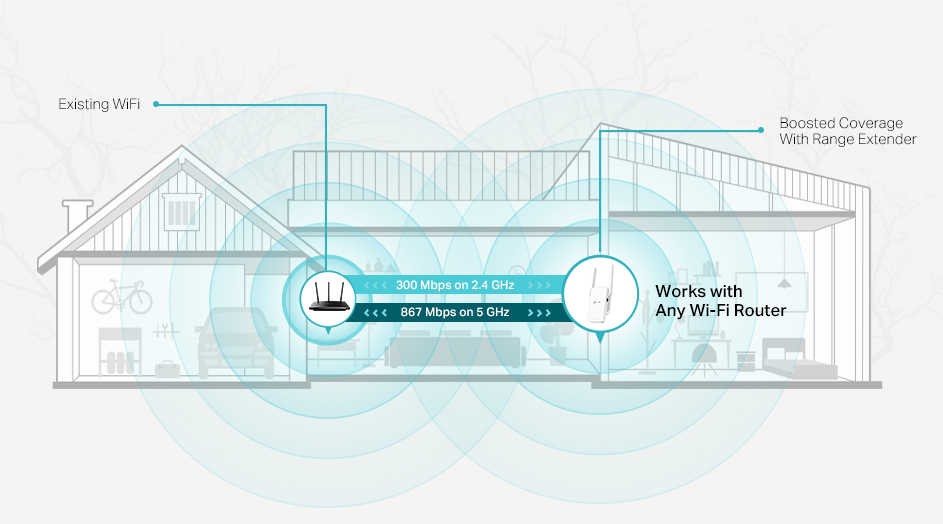
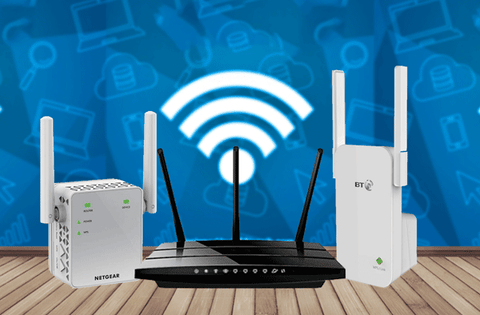
Using WiFi extenders and repeaters helps increase your wireless signal range. These devices catch your main router’s signal and boost it. They fill dead zones in your home or office with stronger WiFi. This way, you get better internet access in far corners. Extenders and repeaters are simple tools that improve coverage without extra wiring.
How Extenders Work
WiFi extenders receive the existing WiFi signal from your router. Then, they amplify and resend the signal to areas with weak coverage. This creates a new network area that devices can connect to. Repeaters work similarly but often create a single network with the original router. Both devices reduce signal loss over distance. They help cover large spaces or places with thick walls.
Choosing The Right Extender
- Check compatibility with your current router’s WiFi standard (like WiFi 5 or WiFi 6).
- Look for extenders with dual-band support for better speed and reliability.
- Consider the size of the area you want to cover.
- Pick models with external antennas for stronger signals.
- Read user reviews to find reliable and easy-to-use options.
Setup Tips For Maximum Coverage
- Place the extender halfway between your router and the weak signal area.
- Avoid placing extenders near thick walls or large metal objects.
- Use the device’s signal indicator to find the best position.
- Keep the extender away from microwaves and cordless phones to reduce interference.
- Update the extender’s firmware for improved performance and security.
- Use the same network name (SSID) as your router if possible for seamless roaming.
Mesh Wifi Systems
Mesh Wifi Systems have changed the way you can boost your home or office internet coverage. Unlike traditional Wifi extenders that simply repeat your signal, mesh systems create a network of multiple nodes working together. This setup provides smoother, more reliable coverage across larger areas without dead zones.
Benefits Over Traditional Extenders
Mesh Wifi offers several advantages compared to traditional extenders. Instead of just repeating the signal, mesh nodes communicate with each other to optimize your connection automatically.
- Seamless Coverage:Your device switches between nodes without dropping connection, unlike extenders where you may need to reconnect manually.
- Consistent Speeds:Mesh systems maintain strong speeds across your space, while extenders often slow down the signal.
- Easy Expansion:Adding a new node to a mesh network is straightforward, allowing you to cover more areas easily.
Have you noticed your Wifi slowing down when moving from room to room? Mesh networks can solve that by keeping your connection steady everywhere.
Popular Mesh Systems
Choosing the right mesh system depends on your needs and budget. Here are some popular options known for their performance and user-friendly features:
| System | Ideal For | Key Features |
|---|---|---|
| Google Nest Wifi | Smart homes, easy setup | Integrated Google Assistant, strong coverage |
| Netgear Orbi | Large homes, high speed | Tri-band technology, fast data transfer |
| TP-Link Deco | Budget-friendly, reliable | Parental controls, malware protection |
Which features matter most to you—speed, security, or smart home integration? Your choice can guide the best system for your space.
Installation And Management
Setting up a mesh Wifi system is designed to be simple, even if you’re not tech-savvy. Most systems come with step-by-step apps that guide you through placement and connection.
- Place the main router near your modem.
- Distribute satellite nodes evenly around your home for balanced coverage.
- Use the app to monitor signal strength and manage connected devices.
Managing your network through a smartphone app gives you control over settings like guest access and parental controls. Have you tried adjusting your Wifi setup recently? Small tweaks can make a big difference in your internet experience.

Credit: www.reddit.com
Alternative Solutions For Larger Coverage
If your current WiFi setup leaves dead zones or slow spots, alternative solutions can help you cover a larger area effectively. These options often offer more stable connections and better speeds than simple WiFi extenders. Let’s look at some practical ways to stretch your network’s reach without compromising performance.
Powerline Adapters
Powerline adapters use your home’s electrical wiring to transmit internet signals. You plug one adapter near your router and connect it via Ethernet, then place another adapter where you need better coverage.
This setup turns any power outlet into a potential network access point. It’s especially useful if WiFi signals struggle to pass through thick walls or floors. Have you tried this? Many find it surprisingly reliable and simple to set up.
Wired Access Points
Wired access points connect directly to your router using Ethernet cables, creating new WiFi hotspots in other parts of your home. This method avoids signal loss that wireless extenders often face.
Setting up wired access points requires running cables, but the payoff is a strong, consistent connection anywhere you place them. Think about areas where you need fast internet for work or streaming — wired access points can handle high traffic smoothly.
Upgrading To A More Powerful Router
Sometimes, your router is the bottleneck. Older or low-end models may not cover large homes or multiple devices efficiently. Investing in a powerful router with advanced antenna technology and better range can make a big difference.
Look for routers that support the latest WiFi standards and offer features like beamforming or mesh compatibility. Could a new router solve your coverage issues without extra gadgets? It’s worth considering before adding complexity to your network.
Maintaining And Monitoring Wifi Performance
Maintaining and monitoring your WiFi performance is key to keeping a strong and stable connection. Regular checks help spot issues early and keep your network running smoothly. Simple habits can improve your WiFi range and speed over time.
Regular Speed Tests
Run speed tests often to measure your internet’s actual performance. Compare results in different rooms and at various times. This helps identify slow spots and peak usage times. Use free online tools for quick and easy testing.
Identifying Dead Zones
Walk around your home with a device to find weak signal areas. Note where videos buffer or pages load slowly. These dead zones need attention to improve your WiFi range. Position your router or add extenders to cover these spots better.
Routine Router Reboots
Restart your router regularly to clear temporary issues. A simple reboot can fix slow speeds and dropped connections. Set a weekly schedule to reboot your router for consistent performance. This small step keeps your WiFi fresh and responsive.
Credit: www.signalbooster.com
Frequently Asked Questions
How Can I Boost My Wifi Signal Strength At Home?
You can boost WiFi signal by placing the router centrally and high. Avoid obstacles and interference from other electronics. Using a WiFi extender or upgrading to a better router also improves coverage effectively.
What Devices Help Extend Wifi Range Easily?
WiFi extenders, mesh WiFi systems, and powerline adapters are great devices. They amplify or retransmit signals to cover dead zones. Choose one based on your home size and internet needs.
Does Upgrading My Router Improve Wifi Range?
Yes, newer routers have stronger antennas and better technology. Upgrading can increase coverage, speed, and connection stability. Look for routers with dual-band or tri-band features for optimal performance.
Can Changing Wifi Channels Reduce Interference?
Changing WiFi channels helps avoid interference from nearby networks. Use a less crowded channel to improve signal quality and speed. Most routers allow easy channel adjustments via settings.
Conclusion
Extending your WiFi range can improve your internet experience. Small changes, like moving your router, can help a lot. Using devices like extenders or mesh systems spreads the signal better. Avoid walls and large objects between your router and devices.
Regularly updating your router’s software keeps it running well. These easy steps can make your WiFi reach farther. Enjoy faster and more stable connections in every corner of your home. Try these tips today and feel the difference.