

Are you struggling to connect your WiFi router and get your devices online? You’re not alone.
Setting up a router might seem tricky, but with the right steps, you can have a strong and reliable internet connection in no time. In this guide, you’ll discover simple, clear instructions that anyone can follow—no tech skills needed. Keep reading, and by the end, you’ll feel confident connecting your router and enjoying fast, hassle-free WiFi.

Credit: www.linkedin.com
Choosing The Right Router
Choosing the right WiFi router is crucial to ensure a strong, reliable internet connection throughout your home or office. The perfect router not only matches your internet speed but also fits your usage needs, whether it’s streaming, gaming, or working from home. Picking the wrong router can lead to dead zones, slow speeds, and constant frustration.
Types Of Wifi Routers
Not all routers are built the same, and knowing the different types helps you pick what suits your setup best.
- Single-Band Routers:These operate on the 2.4 GHz frequency. They are budget-friendly but can get crowded with many devices, leading to slower speeds.
- Dual-Band Routers:They offer two frequency bands, 2.4 GHz and 5 GHz. The 5 GHz band provides faster speeds and less interference, making it ideal for streaming and gaming.
- Tri-Band Routers:These have one 2.4 GHz band and two 5 GHz bands. They handle multiple devices better, perfect for busy households or small offices.
- Mesh Routers:Designed for large spaces, mesh systems use multiple units to create a seamless network, eliminating dead zones.
Key Features To Consider
Once you know the type, focus on features that improve your experience.
- Speed Ratings:Look for routers with speeds that match or exceed your internet plan. For example, a 300 Mbps plan should pair with a router rated at least 300 Mbps.
- Range:Consider the size of your space. A small apartment may only need a router with a 1500 sq ft range, while larger homes benefit from mesh systems or routers with external antennas.
- Number of Bands:More bands usually mean better performance with multiple devices. If your home is full of smartphones, laptops, and smart TVs, dual or tri-band routers serve you better.
- Security Features:Ensure your router supports WPA3 encryption and has regular firmware updates. These protect your network from unauthorized access.
- Ease of Setup:Some routers offer mobile apps for quick setup and management. This can save you hours of frustration.
Have you ever struggled with slow WiFi even after upgrading your internet plan? Sometimes, the right router makes all the difference. Think about your daily internet use and environment before making a choice.
Credit: www.atomic.co.za
Preparing For Setup
Setting up your WiFi router smoothly starts with good preparation. Taking time to prepare can save you frustration and make the process faster. Before you dive into connecting cables and configuring settings, let’s look at what you need and how to verify your internet connection.
Gathering Necessary Equipment
Make sure you have all the essential items ready before beginning. Typically, you’ll need:
- Your WiFi router
- A modem (if your internet provider requires one)
- An Ethernet cable to connect the router to the modem
- A power adapter for the router
- A computer, smartphone, or tablet to configure the settings
Missing one of these can cause unnecessary delays. Have you ever started setting up only to realize you don’t have the right cable? Avoid that hassle by double-checking your equipment now.
Checking Internet Connection
Before connecting your router, confirm that your internet service is active. If you’re using a modem, connect it directly to your computer first and see if you can access the internet. This step helps identify if any issue lies with your internet provider rather than the router itself.
If the internet isn’t working at this stage, contact your provider or troubleshoot the modem. Getting this sorted before router setup saves you from confusing problems later.
Physical Connection Steps
Setting up your WiFi router starts with getting the physical connections right. This foundation is crucial because a loose cable or poor placement can affect your internet speed and stability. Let’s look at how you can make sure your router is connected properly for the best performance.
Connecting Power And Modem
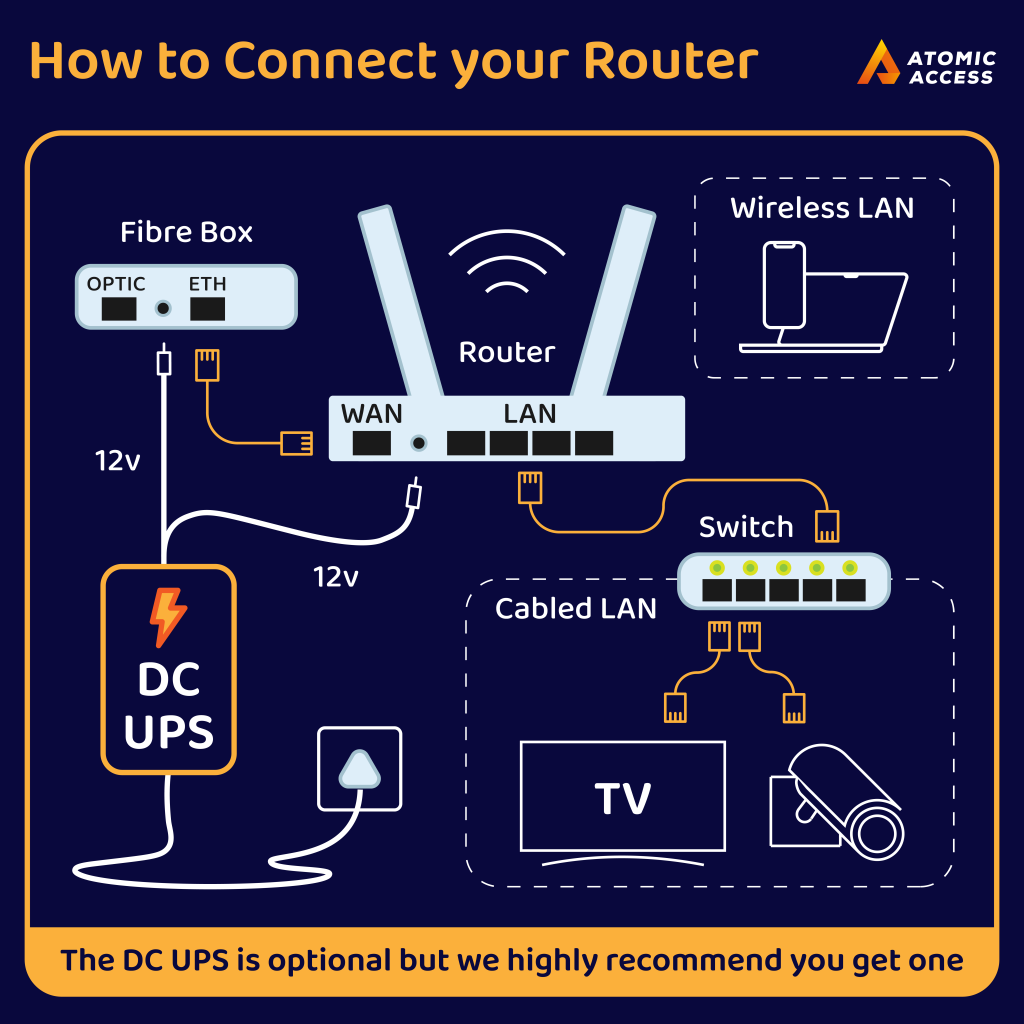
First, plug the power adapter into your router and connect it to an electrical outlet. Make sure the outlet is working by testing it with another device if needed.
Next, take the Ethernet cable that came with your router and connect one end to the router’s WAN or Internet port. The other end goes into your modem’s Ethernet port.
Check that the modem is powered on and functioning. Some routers have indicator lights that will blink or change color when the connection is successful—watch these signals closely. Have you noticed how sometimes a simple cable can be the culprit behind slow internet? Don’t overlook this step.
Positioning The Router
Where you place your router can make a huge difference in signal strength. Aim for a central location in your home, away from thick walls and metal objects that block the signal.
Elevate the router on a shelf or table rather than on the floor. This helps the WiFi waves travel more freely across your space.
Try to keep the router away from other electronics like microwaves or cordless phones, as they can cause interference. Have you ever had your signal drop unexpectedly? Sometimes just moving your router a few feet can fix that issue.
Accessing Router Settings
Accessing your router settings is essential to customize your WiFi network and improve security. It gives you control over your connection, letting you change passwords, set up guest networks, or update firmware. Understanding how to reach these settings can save you from frustrating calls to tech support.
Finding The Router Ip Address
Before you can adjust any settings, you need the router’s IP address. This is like the home address for your router on your network.
On most networks, the router IP is usually one of these:
- 192.168.0.1
- 192.168.1.1
- 192.168.1.254
If these don’t work, you can find the IP address on your device easily:
- Windows:Open Command Prompt and type
ipconfig. Look for the “Default Gateway” under your active connection. - Mac:Go to System Preferences > Network, select your network, click “Advanced,” then check the “TCP/IP” tab for the router address.
- Smartphones:Check WiFi settings, tap the connected network, and look for “Gateway” or “Router” IP.
Have you ever tried guessing the IP and ended up locked out? Finding the exact address first saves you that headache.
Logging Into The Admin Panel
Once you have the IP address, enter it into your browser’s address bar. This will bring you to the login screen of your router’s admin panel.
The next step is to enter the username and password. These are often set to defaults like “admin” for both fields or “admin” and “password.”
If you never changed these credentials, check the label on your router or the manual. Changing these default logins is critical for your network’s security.
Still can’t log in? Try resetting the router by holding the reset button for about 10 seconds. But remember, this will erase all your customized settings.
Getting into the admin panel feels like you’re holding the keys to your home network. What’s the first setting you want to tweak once inside?
Configuring Network Settings
Configuring your network settings is a crucial step in setting up your WiFi router. It ensures that your connection is secure, easy to identify, and optimized for your needs. Taking a little time here can save you from headaches later, like unauthorized access or connection drops.
Setting Ssid And Password
The SSID is the name your network broadcasts. Choose something unique but not too personal, so you can easily spot your network among others nearby.
When creating your password, aim for a mix of letters, numbers, and symbols. Avoid common words or simple sequences like “12345678”—these are easy to guess.
Think about how often you want to change your password. Changing it regularly boosts security but can be a hassle for all connected devices.
Choosing Security Protocols
The security protocol you select protects your network from intruders. WPA3 is the latest and strongest option, but not all devices support it yet.
If your router or devices don’t support WPA3, WPA2 is still a solid choice. Avoid outdated protocols like WEP, which can be cracked quickly.
Consider your household or office setup. Are there many smart devices or guests connecting? Stronger protocols keep your network safer in busy environments.
Connecting Devices To Wifi
Connecting your devices to a WiFi network should be a quick and simple process, but it can sometimes feel confusing if you’re new to it. Whether it’s your smartphone, laptop, or smart home device, each one needs to be properly linked to your router to access the internet. Understanding the basics of entering passwords correctly and knowing how to handle connection problems can save you time and frustration.
Using Password To Join Network
To connect a device to your WiFi, you need to select the correct network name (SSID) from the list of available networks. This name is usually found on a sticker on your router or in the router’s manual. Once you select the network, your device will prompt you to enter the WiFi password.
Make sure to enter the password exactly as it appears, paying attention to uppercase and lowercase letters. Passwords are case-sensitive, so even a small mistake can prevent you from connecting. If you’ve changed your router’s default password, use the updated one instead of the original.
After entering the password, your device should connect within a few seconds. If it doesn’t, double-check the password or try restarting your device. Have you ever noticed how a simple typo can cause hours of confusion?
Troubleshooting Connection Issues
If your device fails to connect after entering the password, don’t panic. Start by forgetting the network on your device and reconnecting. This clears any saved settings that might be causing a conflict.
Check if your router’s signal is strong enough where your device is located. Walls and distance can weaken the signal, so moving closer to the router might help. Also, ensure the router is powered on and functioning properly—sometimes a quick reboot of the router can fix many issues.
Another common problem is outdated device software. Keeping your device’s operating system up to date can improve compatibility with your router. Have you tried switching off airplane mode or toggling WiFi off and on again? These simple steps often fix connection problems faster than you’d expect.
Optimizing Router Performance
Optimizing your router’s performance can dramatically improve your internet speed and connection stability. Small tweaks often lead to noticeable differences in how smoothly your devices connect and interact online. Have you ever noticed your WiFi slowing down at certain times or in specific rooms? These tips can help you fix those issues and get the most out of your router.
Updating Firmware
Keeping your router’s firmware up to date is crucial for performance and security. Manufacturers release updates to fix bugs, improve speed, and patch vulnerabilities. You can usually check for updates by logging into your router’s admin panel through a web browser.
Don’t ignore firmware updates just because your connection seems fine. I once skipped an update and faced constant disconnections until I finally updated the firmware. After that, my WiFi became more reliable and faster.
Adjusting Channel And Frequency
WiFi signals operate on different channels and frequencies, mainly 2.4 GHz and 5 GHz. If many routers in your area use the same channel, your connection can suffer from interference. Changing your router’s channel to a less crowded one can improve speed and reduce drops.
Switching between 2.4 GHz and 5 GHz also impacts performance. The 2.4 GHz band covers a wider area but is slower and more prone to interference. The 5 GHz band offers faster speeds but with a shorter range. Try both to see which works better for your space.
- Use a WiFi analyzer app to find the least crowded channels.
- Set your router to auto-select the best channel if available.
- Choose 5 GHz for streaming or gaming when close to the router.
- Use 2.4 GHz for devices farther away or through walls.
Securing Your Network
Securing your WiFi network keeps your data safe from hackers. It also stops strangers from using your internet without permission. Simple steps can protect your connection and improve your online privacy.
Enabling Firewall
A firewall acts as a barrier between your network and the internet. It blocks unwanted traffic and potential threats. Most routers have a built-in firewall that you can turn on.
To enable it, log in to your router settings. Look for the firewall section and activate it. This step helps stop hackers and harmful software from entering your network.
Managing Connected Devices
Check which devices are connected to your network regularly. Unknown devices could be using your WiFi without your consent. Your router settings list all connected devices.
- Open the device list in your router’s admin panel.
- Identify devices by their name or MAC address.
- Remove or block any device you don’t recognize.
This control keeps your network safe and ensures good internet speed for your devices.
Credit: www.highspeedinternet.com
Frequently Asked Questions
How Do I Connect A New Wifi Router?
Plug in your router’s power adapter and turn it on. Connect the router to your modem using an Ethernet cable. Use a computer or smartphone to find the router’s default wifi network. Access the router’s setup page to configure your wifi name and password.
What Is The Best Place To Put My Wifi Router?
Place your router in a central, elevated location free from obstructions. Avoid placing it near metal objects or electronics that cause interference. A central spot helps distribute the wifi signal evenly throughout your home or office.
How Do I Secure My Wifi Router Connection?
Change the default admin username and password immediately. Enable WPA3 or WPA2 encryption for your wifi network. Disable remote management and update your router’s firmware regularly to protect against vulnerabilities.
Can I Connect Multiple Devices To One Wifi Router?
Yes, modern wifi routers support multiple devices simultaneously. However, too many devices may reduce your internet speed. Ensure your router supports the number of devices you plan to connect for optimal performance.
Conclusion
Connecting your wifi router is simple and quick. Follow the steps carefully to get online fast. Check your cables, power on the router, and connect your device. Enter the network name and password correctly to avoid issues. Restart the router if the connection feels slow or unstable.
Keep your router in a good spot for better signal. Enjoy smooth internet for work, study, or fun. Practice these steps to stay connected anytime you need. Easy and reliable wifi is just a few steps away.