

Are you ready to make your home smarter and more convenient? Connecting your Gosund Smart Plug is easier than you think, and it can transform the way you control your devices.
Imagine turning your lights on or off with a simple tap on your phone, no matter where you are. In this guide, you’ll learn step-by-step how to set up your Gosund Smart Plug quickly and without hassle. Keep reading to unlock the full potential of your smart home and take control like never before.
Gosund Smart Plug Features
The Gosund Smart Plug offers a range of features that make controlling your home devices simple and efficient. Understanding these features will help you get the most out of your smart plug and improve your daily routines. Let’s look at what sets this device apart and how it fits into your smart home setup.
Design And Build
The Gosund Smart Plug has a compact and sturdy design that fits easily into any outlet without blocking adjacent sockets. Its minimalistic look blends well with modern home decor, so it won’t stand out awkwardly.
The plug is built with durable materials that ensure long-lasting use, even with frequent plugging and unplugging. You’ll notice it feels solid in your hand, which adds to the confidence that it will perform reliably over time.
Compatibility
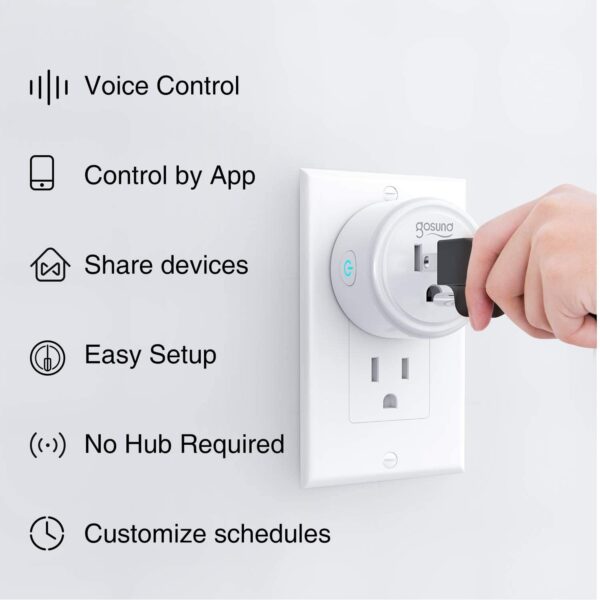
This smart plug works seamlessly with popular voice assistants like Alexa and Google Assistant, giving you hands-free control. Have you ever wished you could turn off lights or appliances without moving? This feature makes that possible.
It also supports a wide range of devices, from lamps to coffee makers, making it a versatile addition to any home. Plus, it connects easily to your home Wi-Fi network without needing a hub, simplifying setup and use.
Key Functions
- Remote Control:Manage your devices anytime from anywhere using the Gosund app on your smartphone.
- Scheduling:Set timers or schedules so your appliances turn on or off automatically, saving energy and time.
- Energy Monitoring:Track the power consumption of connected devices to understand and reduce your electricity usage.
- Scene Setting:Create customized scenes to control multiple devices with a single command.
Imagine never worrying if you left your iron on—this plug lets you check and control it remotely. These functions provide both convenience and peace of mind.

Credit: us.ghomesmart.com
Preparing For Setup
Getting your Gosund Smart Plug ready for setup is essential for a smooth and hassle-free experience. Before you dive into connecting it, a few preparatory steps will save you time and frustration. Let’s look at what you need to have in place to make the process straightforward and successful.
Checking Requirements
Start by ensuring you have everything needed for the Gosund Smart Plug to work properly.
- Power Source:Confirm you have an available power outlet near the device you want to control.
- Smartphone or Tablet:You’ll need a compatible device to install the Gosund app and manage the plug.
- Wi-Fi Network:The smart plug requires a 2.4 GHz Wi-Fi connection—5 GHz won’t work.
- Account Setup:Prepare to create or log into a Gosund account in the app for device management.
Missing one of these can stop the setup before it even begins. Have you checked your Wi-Fi frequency already?
Downloading The App
The Gosund app is your control center. Without it, the smart plug won’t be more than a regular outlet.
- Search for “Gosund” in your device’s app store (Google Play or Apple App Store).
- Download and install the app—this usually takes just a minute.
- Open the app and sign up or log in to your account.
Having the app ready before plugging in the device makes the process faster. I once waited to download the app after plugging in the device, and it wasted valuable setup time.
Ensuring Wi-fi Connectivity
Stable Wi-Fi is the backbone of smart device functionality. Check your home network’s strength where you plan to place the smart plug.
- Confirm your router broadcasts a 2.4 GHz network.
- Test the Wi-Fi signal near the outlet by using your phone to stream a video or load a webpage.
- If the signal is weak, consider moving the router closer or using a Wi-Fi extender.
Think about how often your smart devices lose connection. Could your Wi-Fi setup be the culprit? Ensuring strong connectivity upfront prevents repeated reconnections later.
Step-by-step Setup
Setting up your Gosund Smart Plug is easier than you might think. The process involves just a few simple actions that get your device ready for smart control. Let’s walk through each part to make sure your smart plug works perfectly right out of the box.
Powering The Smart Plug
Start by plugging your Gosund Smart Plug into a power outlet. Make sure the outlet is switched on to provide power. You’ll notice the LED indicator on the plug blinking, which means the device is ready to connect.
If the LED doesn’t blink, try pressing the power button on the plug for a few seconds until it starts. This step is crucial because without power, the smart plug won’t respond to any commands.
Connecting To Wi-fi
Next, ensure your phone is connected to your home’s 2.4 GHz Wi-Fi network—not 5 GHz—as the smart plug only supports the former. Open your phone’s Wi-Fi settings and verify this connection before proceeding.
Then, switch back to the Gosund app (or the compatible app you’re using) to begin the Wi-Fi connection process. The app will prompt you to enter your Wi-Fi password to link the smart plug to your network. If you face connection issues, double-check your password and try again.
Linking With The App
Open the Gosund app and select “Add Device.” The app will automatically detect the smart plug in pairing mode. Follow the on-screen instructions to complete the setup.
Once connected, you can name your smart plug and assign it to a room for easier control. Have you thought about how naming devices might simplify voice commands later? This small step can save you time and frustration.
After linking, test the plug by turning it on and off through the app. If it responds quickly, your setup is successful. If not, revisiting the previous steps usually clears up the issue.
Customizing Smart Plug Settings
Customizing your Gosund smart plug settings helps tailor its functions to fit daily routines. Personal settings improve convenience and energy efficiency. The app offers simple tools to change names, set schedules, and create automation easily. These options make the smart plug work smarter for your home.
Naming Devices
Give each smart plug a clear, unique name. This makes it easier to control multiple devices. Use names based on the room or device type, like “Living Room Lamp” or “Coffee Maker.”
Open the Gosund app, select the device, and tap the name field. Enter the new name and save. This helps avoid confusion when managing several plugs.
Setting Schedules
Schedules turn devices on or off automatically at set times. This saves energy and keeps your routine smooth. For example, schedule lights to turn off at bedtime or the heater to start before you wake up.
In the app, choose your smart plug and find the scheduling option. Set the desired time and repeat days. Confirm the schedule to activate it. This feature works even if you forget to control the device manually.
Creating Automation
Automation links your smart plug to other devices or conditions. It lets your plug respond to triggers like motion sensors or time of day. This adds extra convenience and control.
Use the app’s automation section to build rules. Select a trigger, such as “motion detected” or “sunset,” and choose the action for your smart plug. Save the automation to enable it. This setup reduces the need for manual operation and adapts to your lifestyle.
Troubleshooting Common Issues
Connecting your Gosund Smart Plug should be straightforward, but sometimes issues pop up that can slow you down. Troubleshooting these common problems quickly helps you get your smart home running smoothly. Let’s dig into some typical hurdles and how to fix them without hassle.
Wi-fi Connection Problems
If your Gosund Smart Plug won’t connect to Wi-Fi, check your network first. Make sure your router is working and broadcasting on a 2.4 GHz band, as most smart plugs don’t support 5 GHz networks.
Try these tips:
- Move the plug closer to the router to avoid signal drops.
- Double-check your Wi-Fi password for typos.
- Restart your router and the smart plug to refresh connections.
Have you noticed your Wi-Fi cuts out often? This could be the real culprit behind connection failures. Experiment with repositioning devices to find a stronger signal spot.
App Sync Errors
Sync issues between the Gosund app and your smart plug can be frustrating. If the app doesn’t recognize your device or shows outdated status, try logging out and back into the app.
Other helpful steps include:
- Ensuring the app is updated to the latest version.
- Clearing the app cache or reinstalling it completely.
- Confirming your smartphone is connected to the same Wi-Fi network as the plug.
Have you checked if multiple users are logged into the app on different devices? Sometimes this causes sync conflicts. Make sure only one device manages the plug to avoid confusion.
Resetting The Device
If nothing else works, resetting your Gosund Smart Plug often clears persistent issues. This returns the plug to factory settings, letting you start fresh with the setup.
To reset:
- Press and hold the power button on the plug for about 5 seconds.
- Wait until the LED indicator blinks rapidly, signaling a reset.
- Reopen the app and follow the setup process as if it’s a new device.
Think of resetting as a way to wipe the slate clean. Have you ever had a stubborn gadget that only worked after a reset? This simple trick often saves time and frustration.
Tips For Optimal Use
Optimizing your Gosund Smart Plug ensures better performance and longer device life. Small habits improve energy use and convenience. Follow simple tips to get the most from your smart plug.
Energy Saving Practices
- Turn off devices when not in use using the smart plug.
- Set schedules to power devices only during needed times.
- Use the energy monitoring feature to track usage.
- Unplug devices that consume standby power through the smart plug.
Integrating With Voice Assistants
- Connect your smart plug to Alexa, Google Assistant, or Siri.
- Use simple voice commands to control devices hands-free.
- Group plugs by room or device type for easier control.
- Create routines or scenes for automatic actions.
Regular Firmware Updates
- Check for updates in the Gosund app regularly.
- Install updates to improve security and add new features.
- Keep your smart plug connected to Wi-Fi during updates.
- Restart the device after updating to ensure proper setup.
Credit: veritasconsults.com
Frequently Asked Questions
How Do I Set Up A Gosund Smart Plug?
To set up a Gosund Smart Plug, download the Gosund app. Plug in the device and follow the app’s instructions to connect it to your Wi-Fi network. Ensure your phone is on the same 2. 4 GHz Wi-Fi band during setup.
Can I Control Gosund Smart Plug Via Alexa?
Yes, you can control Gosund Smart Plug with Alexa. Link the Gosund app to your Alexa account, then use voice commands to turn the plug on or off. This enhances hands-free smart home control easily.
What Wi-fi Frequency Does Gosund Smart Plug Support?
Gosund Smart Plug supports only 2. 4 GHz Wi-Fi networks. It does not work with 5 GHz bands. Ensure your router broadcasts a 2. 4 GHz signal for successful connection and operation.
Is Gosund Smart Plug Compatible With Google Home?
Yes, Gosund Smart Plug works with Google Home. After connecting the plug to the Gosund app, link it in the Google Home app. You can then control it using Google Assistant voice commands.
Conclusion
Connecting your Gosund Smart Plug is simple and quick. Follow the steps carefully for the best results. You can control devices from anywhere using your phone. Make sure your Wi-Fi is strong and stable. Try using voice commands with Alexa or Google Assistant.
Enjoy saving energy and adding convenience at home. Keep your smart plug updated for better performance. Start exploring smart home features today with ease.